Installation
Install dependencies
Visual C++ Redistributable
You need to install the 2015-2022 version of Visual C++ Redistributable x64. Download from the link below to get a file vc_redist.x64.exe and install it.
CUDA 11.8
CUDA is required only for GPU acceleration for AI inference. Download and install CUDA 11.8 from the link below.
cuDNN 8.9.6
cuDNN is required only for GPU acceleration for AI inference. It must be installed after installing CUDA.
Follow these instructions to install cuDNN.
Install Pleora eBUS Player
This software allows OneVision to connect and configure GigE Vision and USB3 Vision cameras. It requires a license.
🔗 Download eBUS Player from Pleora
Execute the setup
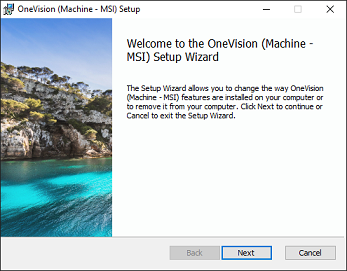
Execute the setup file onevision_win32_x64_xyz.msi and follow the instructions (xyz are the version numbers).
No other options are provided for the setup of OneVision apart from the installation folder.
Activate your OneVision license
If you open OneVision, a dialog will show to introduce the activation file and unlock the software.
The activation file will be generated by our team after your purchase and sent to you by email.
To get the activation file you must provide our team the Hardware ID that is shown in the license dialog, which can be copied with the button that is shown next to the Hardware ID string.
Once you have a valid license, upload the license file and you are ready to go.
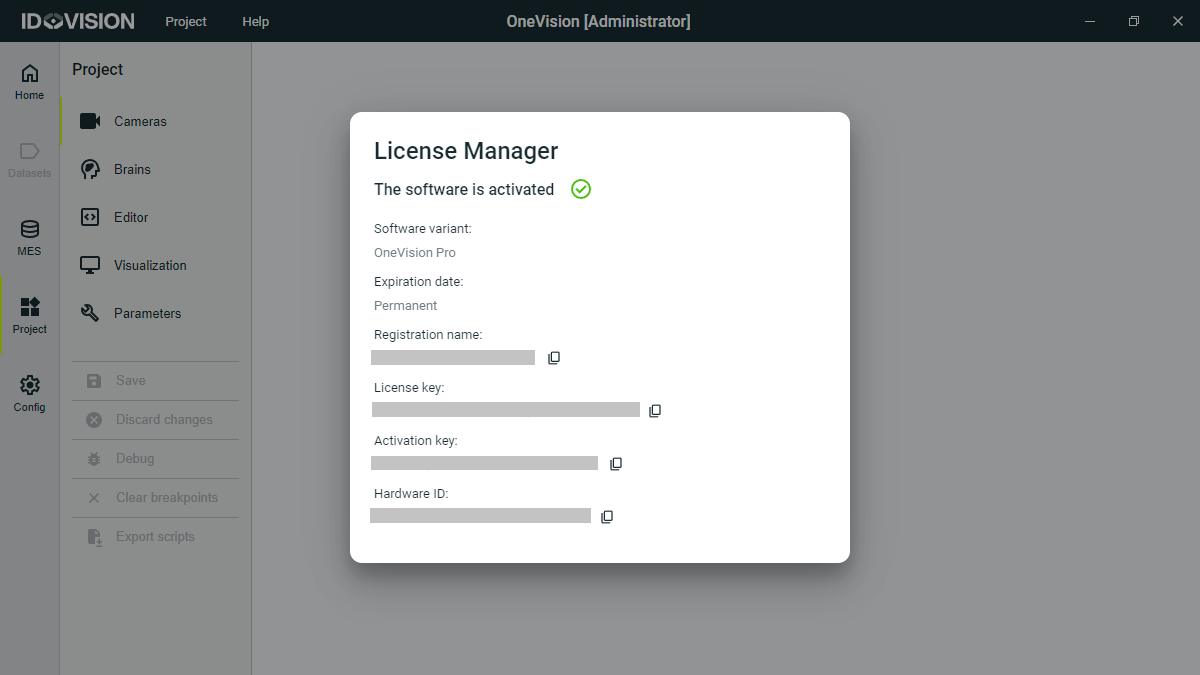
After activation, you can check your license details from the top bar menu Help -> License manager.
Location of internal files
All the configuration files and internal data are stored in the folder C:\OneVision, which is automatically created by OneVision during the first run.
Deleting or manually modifying files inside this folder may result in the software not working properly or not working at all.