Understanding Projects
Projects are the main way to organize different vision applications within OneVision. A project is a saved collection of cameras, AI brains and runtime sequences. You can create as many projects as you want, and switch between them at any time.
Most of the time, you will be working with a single project per vision application. But in cases of multiple product references that cannot be handled by a single project, you can create multiple projects and switch between them manually or with a communication signal from a PLC or a robot.
Communication interfaces are not part of the project file because they are a static configuration of the software (the same for all projects).
The project menu
The project menu is located in the topbar. It contains all the commands that you can use to manage projects.
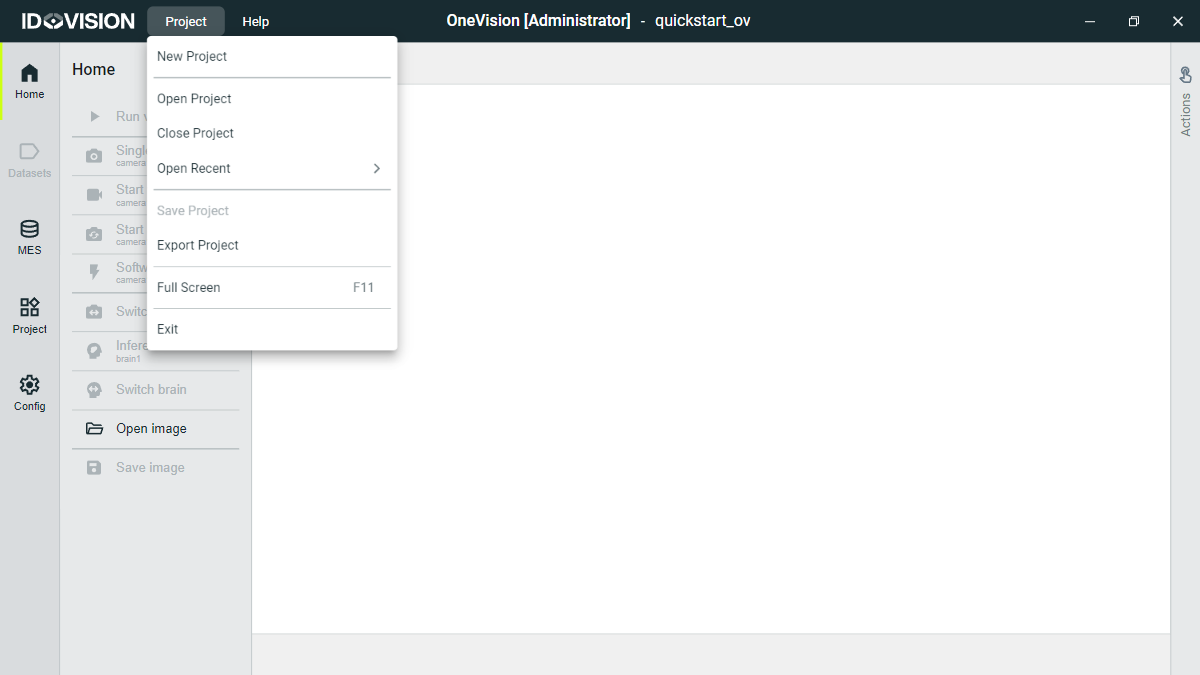
These are the different actions available:
- New project: Creates an empty project, as explained in the Quickstart section.
- Open project: Opens the open project dialog, explained in the next section.
- Close project: Closes the current project. If you have made changes to the project, you will be asked to save them before closing.
- Open recent: Shortcut to open the most recently used projects.
- Save project: Saves the current project if it has changes. This command is also available in the left bar inside the Project section.
- Export project: Saves the current project to a file. To later use the exported project, the import mechanism is used, as explained in the next section.
- Fullscreen: Toggles the software to fullscreen mode.
- Exit: Stops the software. If you have made changes to the project, you will be asked to save them before closing.
The X button on the topbar window controls only hides the software, but it does not stop it.