Software Overview
Let's discover OneVision in less than 5 minutes.
When you open the OneVision desktop application you will see the following layout:
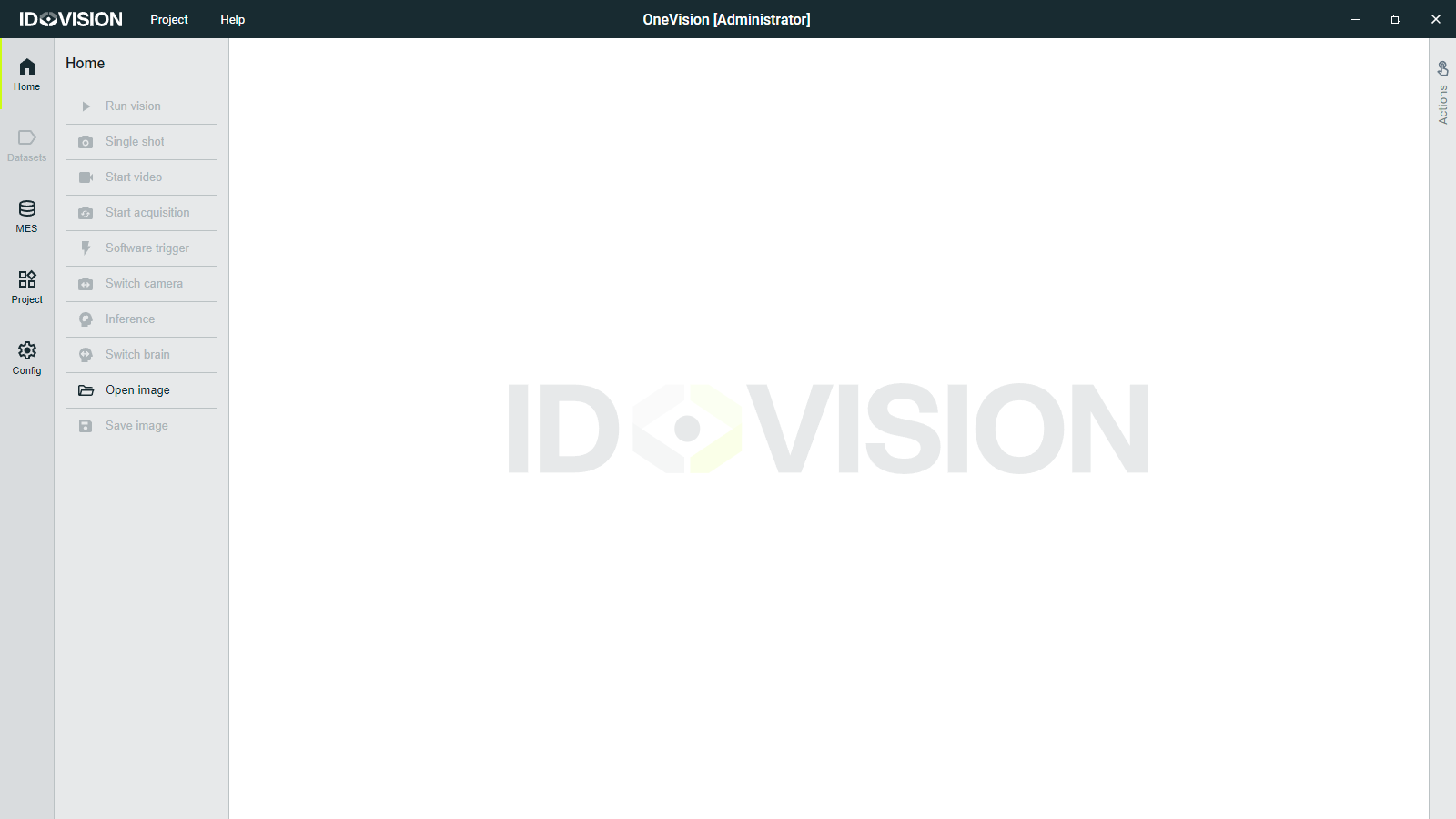
Here you have the software topbar with which you can manage the software and the projects, and the side menu to navigate through the software sections.
OneVision can also be run from the web application, right-clicking the OneVision icon at the taskbar and selecting Open in browser.
You cannot run the desktop and web applications at the same time.
Software topbar
This is the top dark bar of the software, which is always visible. It contains the following elements:
- Project: this is where you can create a new project, open an existing project, save the current project, etc.
- Help: this is where you can find the documentation, license manager, etc.
- Current project name: this is where you can see the name of the current opened project.
- Window controls: standard buttons to minimize, maximize and close the software.
The close button only hides the software, it does not close it. To close the software you must use the Exit button in the project menu in the topbar or right-click the OneVision icon at the taskbar and select Exit.
Software sections
There are four main sections in the software, which are always visible at the left menu:
Home
This is the production view, where the program results are shown, and also where you can manually trigger cameras and execute inference on AI models. This is what the software will show most of the time, as during production it is the most useful. Read more.
MES
This is an internal database where production images and results are stored. The information stored here can be queried for result analysis by vision engineers or quality personnel. The size of the database is automatically managed, removing the oldest entries. Read more.
Project
In the project section you can define a collection of cameras, brains, runtime sequences and a visualization, specific to a particular use-case. Different project files can be stored and loaded when the product reference changes, or to experiment with different configurations. Read more.
Configuration
The configuration determines the behavior of the software as a vision workstation within a factory. As such, it is static, different configurations cannot be loaded like a project. It includes the configuration of communication interfaces with the outside world, the configuration of the system signals, and the general settings of the software. Read more.