Program the Application
Let's start writing some simple code. We want to create a program that opens images from a folder and executes our brain on them. To do this we will create a program sequence.
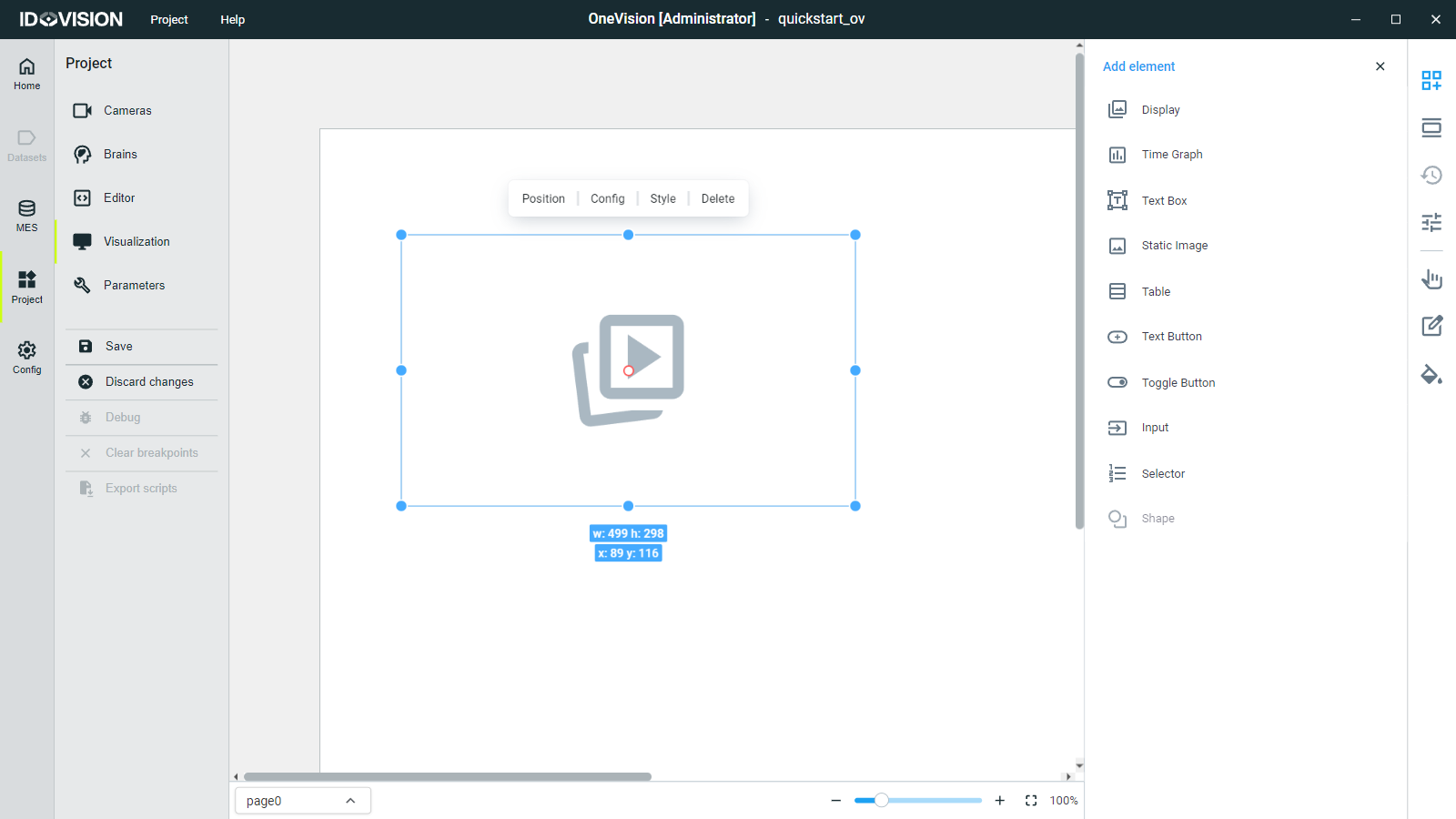
First of all, we need a display to show the results of the sequence. Go to Visualization in the Project section. On the top right corner, select Add element and choose the Display element. Change the dimensions as you like and click Save.
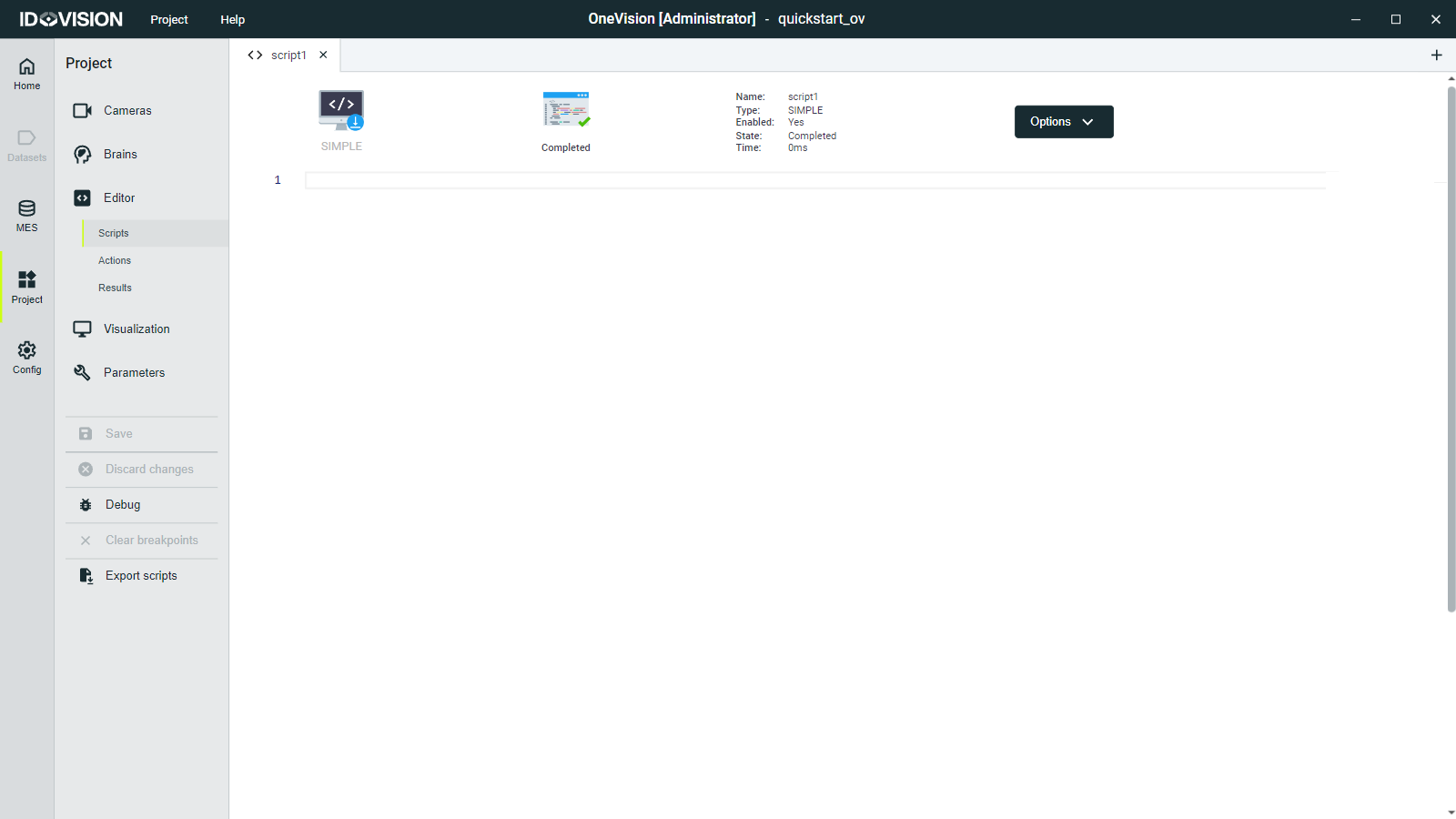
Now go to the Editor subsection in the Project section, and then go to Scripts. To add a new script, click on the add + button in the top right corner. This will open a dialog, where you can enter the name of the script and the type of sequence, in this case we will select SIMPLE.
Sequence types
- SIMPLE: It is executed once when the program starts and then it is finished.
- CYCLIC: It is executed continuously, once finished it is executed again.
- INIT: It is executed once when the program starts, before any other sequence executes.
- END: It is executed once when the program is stopped, after other sequences have ended.
Now add the following lines of code:
// OneVision quickstart program

// Configure the folder path
const var IMAGES_FOLDER = "C:\...\fuet_image.jpg";

// List the images in the folder
var images_list = Fs.listImages(IMAGES_FOLDER);

// Iterate for each image
for (var i = 0; i < images_list.length; i++) {
    // Create the complete path to the image
    var image_filepath = IMAGES_FOLDER + "/" + images_list[i];

    // Load the image into an Image Vision Element
    var loaded_image = Ve.loadImage(image_filepath);

    // Resize the image to match the input size
    // In the brains section, you will see the input height and width needed
    loaded_image = Ve.resizeImage(loaded_image, 256, 1024);

    // Change the image format if needed
    loaded_image = Ve.convertImage(loaded_image, Ve.EPixelFormat.RGB8);

    // Execute inference on the image
    var inference_result = Brains.brain1.inference(loaded_image);

    // This brain outputs a segmentation
    // In one vision that is saved as an Image Vision Element
    var fuet_segmentation = inference_result.fuet;

    // Change the color and the opacity of the segmentation
    fuet_segmentation.display = Ve.EImageDisplay.SolidGradient;
    fuet_segmentation.color = "#8a36e2";
    fuet_segmentation.opacity = 0.5;

    // Create a capture with the image
    var capture = new Capture(loaded_image);

    // Add the segmentation to the capture
    capture.addVisionElement(fuet_segmentation, "Segmentation");

    // Send the capture to the display
    Visu.page0.display1.sendCapture(capture);
    Visu.update();

    // Wait some time
    waitTime(1000);
}
This code will open the images in the configured folder and execute inference on them.
Save the changes made to the project by clicking Save in the left menu.
Run the program
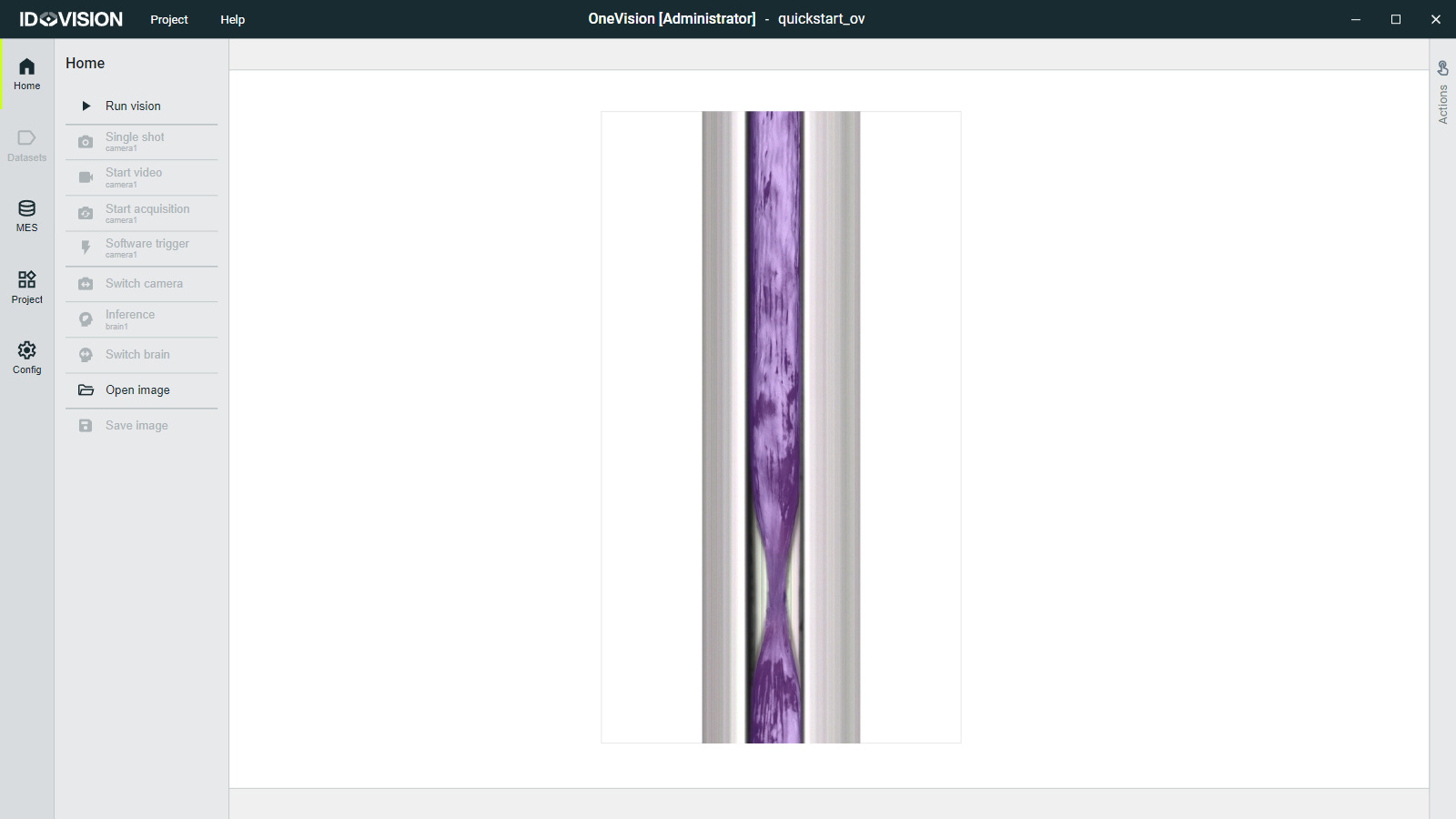
The program (or runtime) is executed in the Home section. Click Run vision to run the program. You will see how the images are opened and inference is executed on them. For each image a new capture is shown in the GUI.
After all the images have been processed and the for loop has finished, the program will stop automatically.
You can also stop the program manually by clicking Stop vision.