Exporting Data
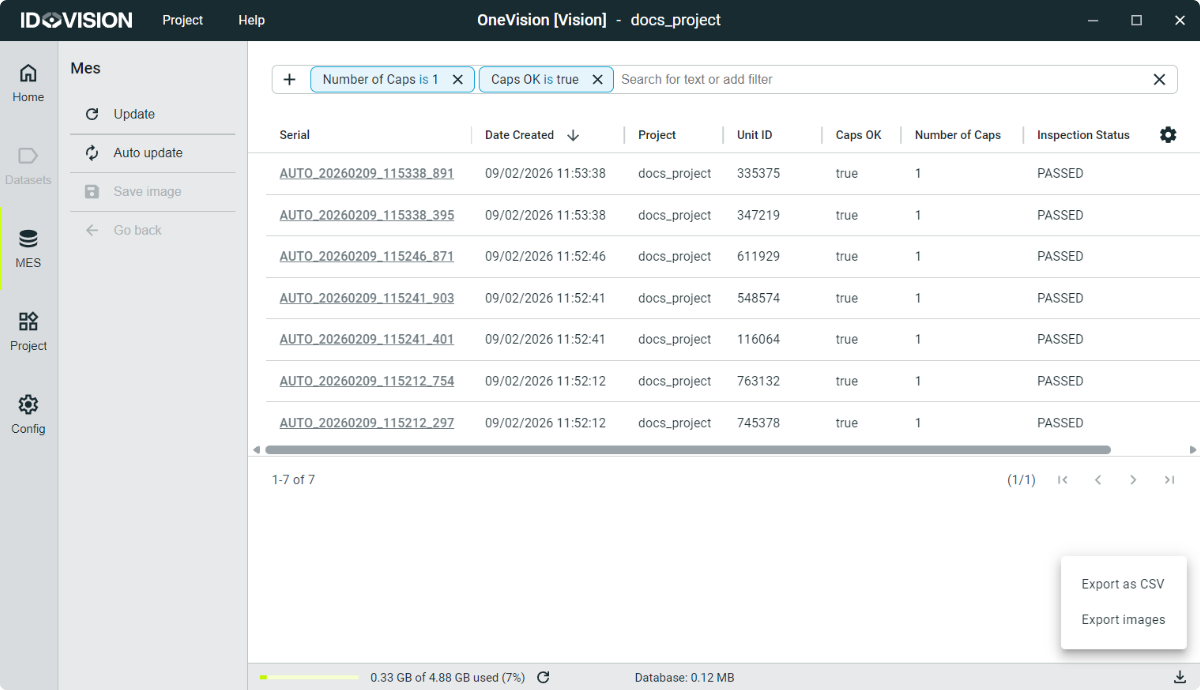
To export the MES data, click the download icon on the bottom-right side of the screen. You will see two options:
- Export .csv file: Saves a
.csvfile containing the information from the Units table. - Export images: Opens the export images menu.
Export images
When you click the download icon and select Export images, the following menu will appear:
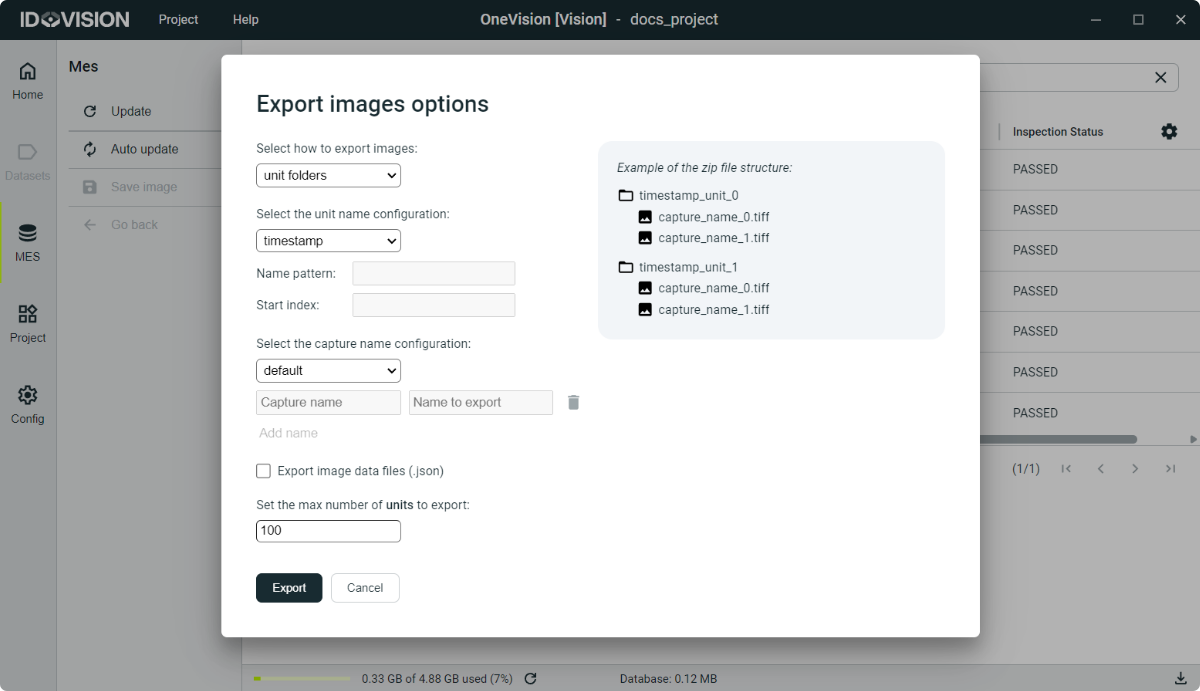
Here you can customize how the images are saved.
With the first selector, you can decide whether the images are saved in separate files, inside Unit folders (grouped by Unit) or inside Capture folders (grouped by Capture). A preview is shown on the right side.
With the next two selectors, you can choose the naming format for Units and Captures. The name can be the serial number, the timestamp, or a custom name. A preview of the selected naming format is also shown on the right side.
By enabling the checkbox below, an additional .json file will be saved, containing the Vision Elements of the image.
Finally, you can set the maximum number of Units to export.