What is Home?
The Home section is the default view displayed when OneVision starts. It is the primary interface for production, where you can monitor and interact with the machine vision system. This section is designed to provide a comprehensive overview of the production process, enabling you to manually control cameras, execute AI model inferences, and view results in real-time.
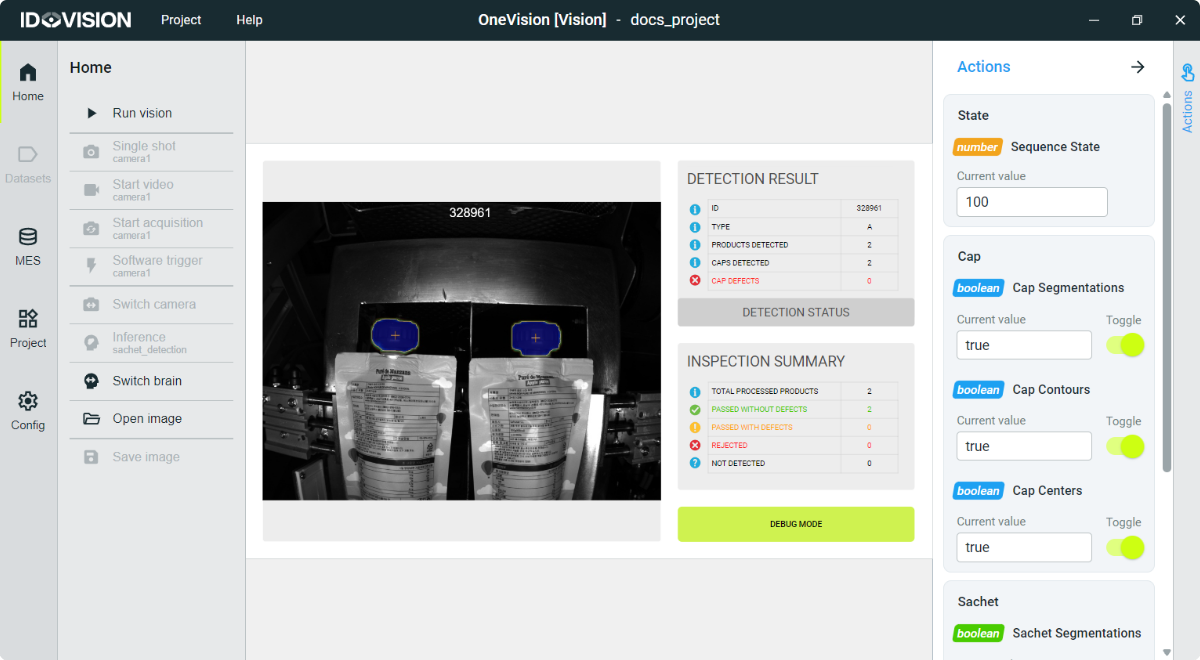
The Home section consists of the following main areas:
Home menu
Situated at the left part of the screen, the home menu provides quick access to essential functions for managing the machine vision system within OneVision. These buttons facilitate various operations such as starting or stopping program execution, controlling cameras, executing AI model inferences, and handling image operations.
- Start/Stop program: Initiates or halts the execution of sequences. This button toggles the program's runtime, allowing you to start or stop the flow of operations.
- Single shot: Triggers a single image capture from the configured camera.
- Start video: Begins streaming video from the camera.
- Start acquisition: Initiates continuous image acquisition from the camera.
- Software trigger: Sends a software trigger to the camera if supported. This action is available when the camera is actively acquiring images.
- Switch camera: Allows switching between different configured cameras. This action is available when multiple cameras are configured.
- Inference: Executes an AI model inference on the current image. This action is available when a brain is loaded.
- Switch Brain: Enables selection of different AI models (Brains) for inference. This action is available when multiple AI models are loaded.
- Open image: Opens an image from disk for analysis.
- Save image: Saves the current image displayed in the workspace to disk.
Except for the stop program action, which halts the runtime, the other actions are designed to be used when the runtime is stopped. During production, these actions are disabled to prevent interference with ongoing operations.
Display view
In the central part of the screen you will see the main display view of the application. Here, you can see the production images and a series of visualization elements. To learn how to add and modify these visualization elements go to the Visu Editor section.
You can interact with some of these elements like buttons or selectors. Some of those interactive elements can be configured with user-level restrictions. For more information, see the User level restrictions on interactive elements section.
Actions bar
The actions bar is hidden by default, you can show it clicking on the Actions button at the top right of the screen. Here you can interact with the different Actions.
An Action is an element linked to a variable. Through the action you can interact with this variable during runtime. To learn how to create Actions go to the Editor.