Create a dataset
Dataset overview
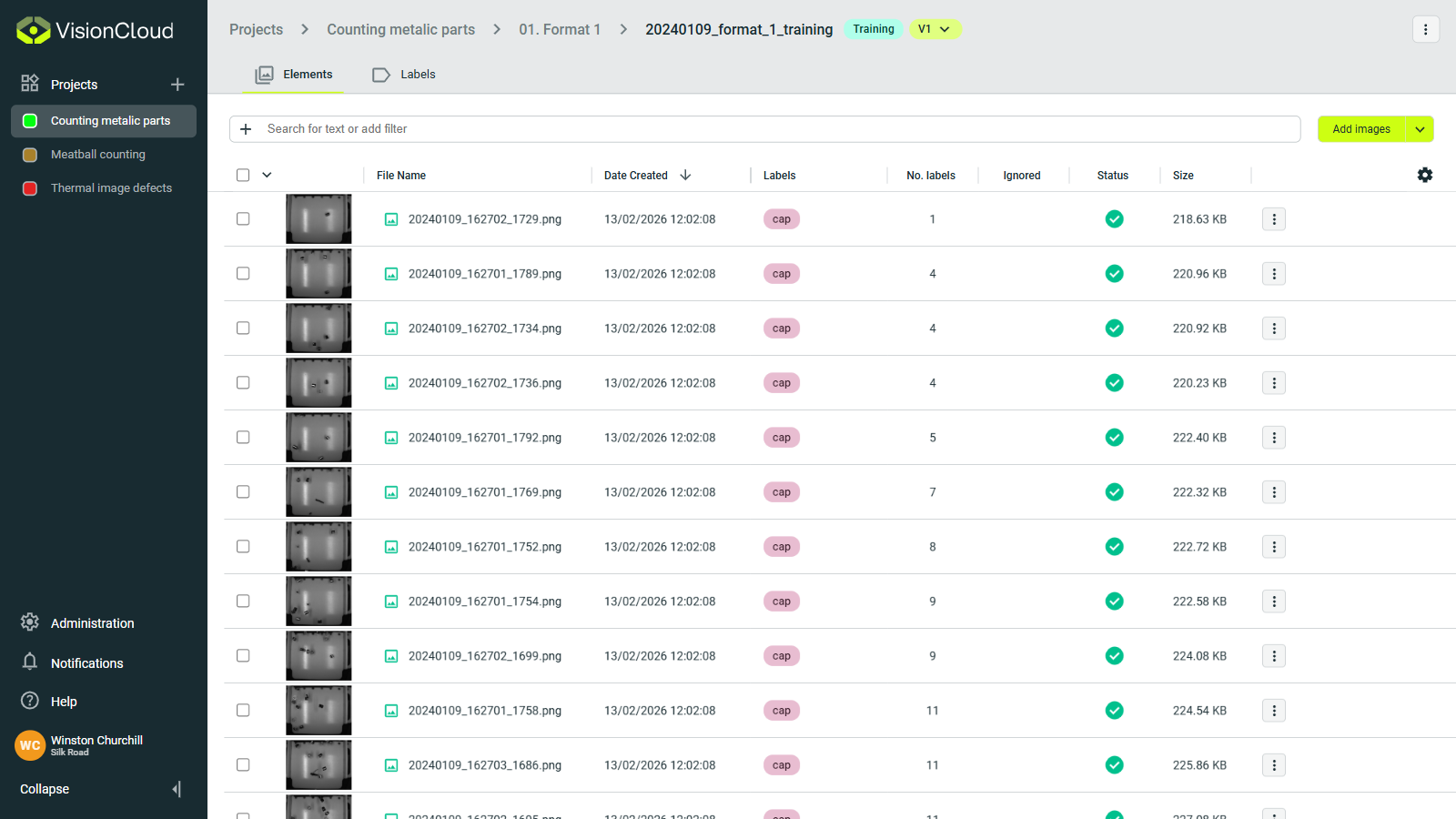
Inside any project, heading to the Datasets tab opens up a powerful control center.
Here, two main actions become available:
- Create new datasets from scratch.
- Browse and manage the details of datasets you've already created.
An image dataset is a curated set of images, with or without annotations, that provide the ground truth and input distribution necessary for training, validation, and performance assessment of your computer vision model.
Datasets are the foundation of your model training. Organizing them properly ensures better model performance and easier iteration.
Dataset creation
Creating a new dataset is simple:
- Choose your images
- Navigate to your project
- Click on the Datasets section
- Click the
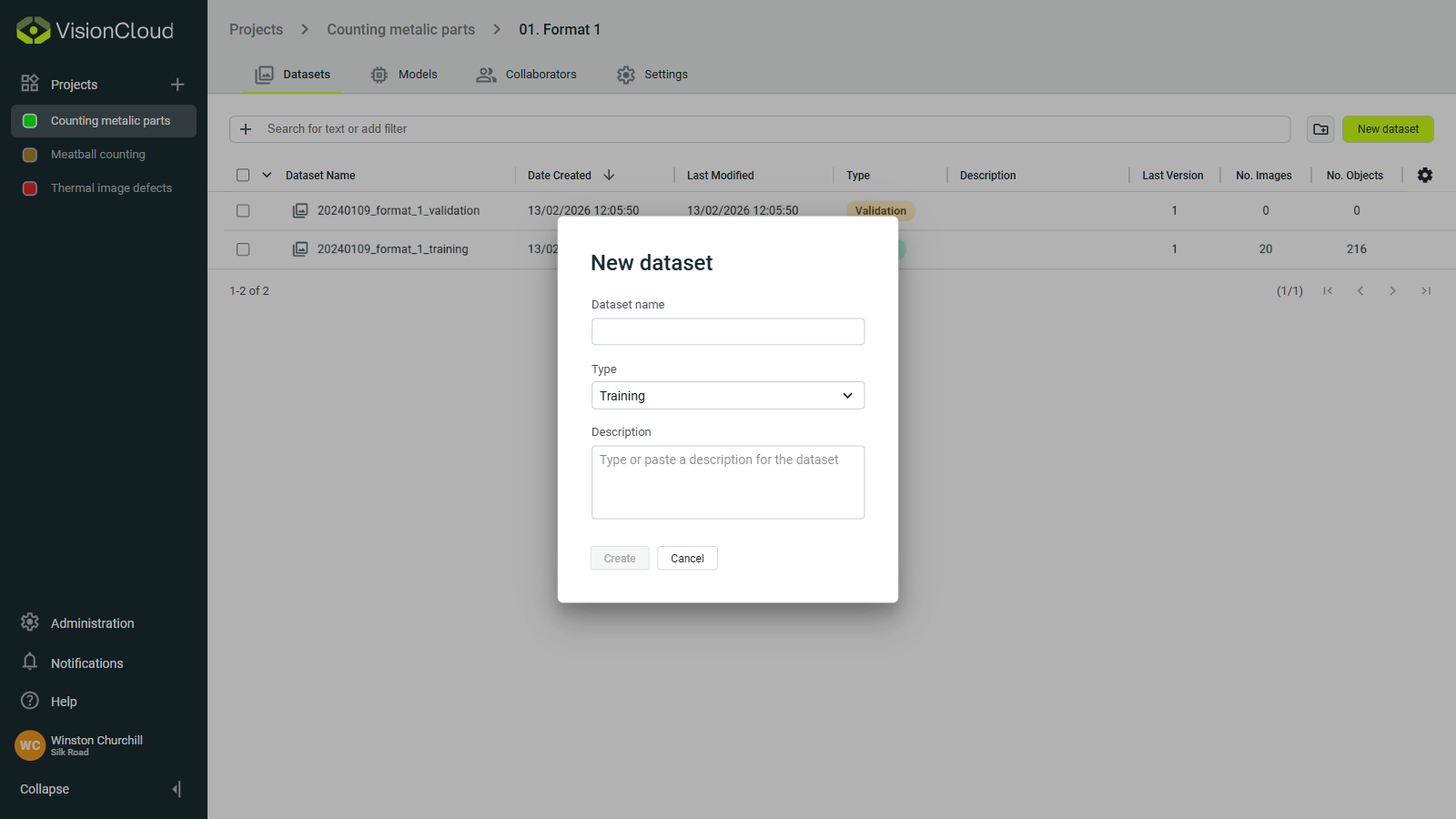
New datasetbutton - Fill in the required information:
- Name: A unique, descriptive name for your dataset.
- Type: Select the appropriate dataset type - Training or Validation (see Considerations).
- Description (optional): Add details about the dataset's purpose or contents.
Considerations
When training a computer vision model, always split your images into two separate sets:
- Training images: used to teach the model to recognize patterns.
- Validation images: must be different from training images and are used to check that the model is learning correctly (and not just memorizing).
- Use an 80% / 20% split between training and validation.
- In some cases, you may go up to 90% / 10% depending on dataset size and project needs.
Datasets table
The datasets table view provides an overview of all datasets in your project, with powerful management tools:
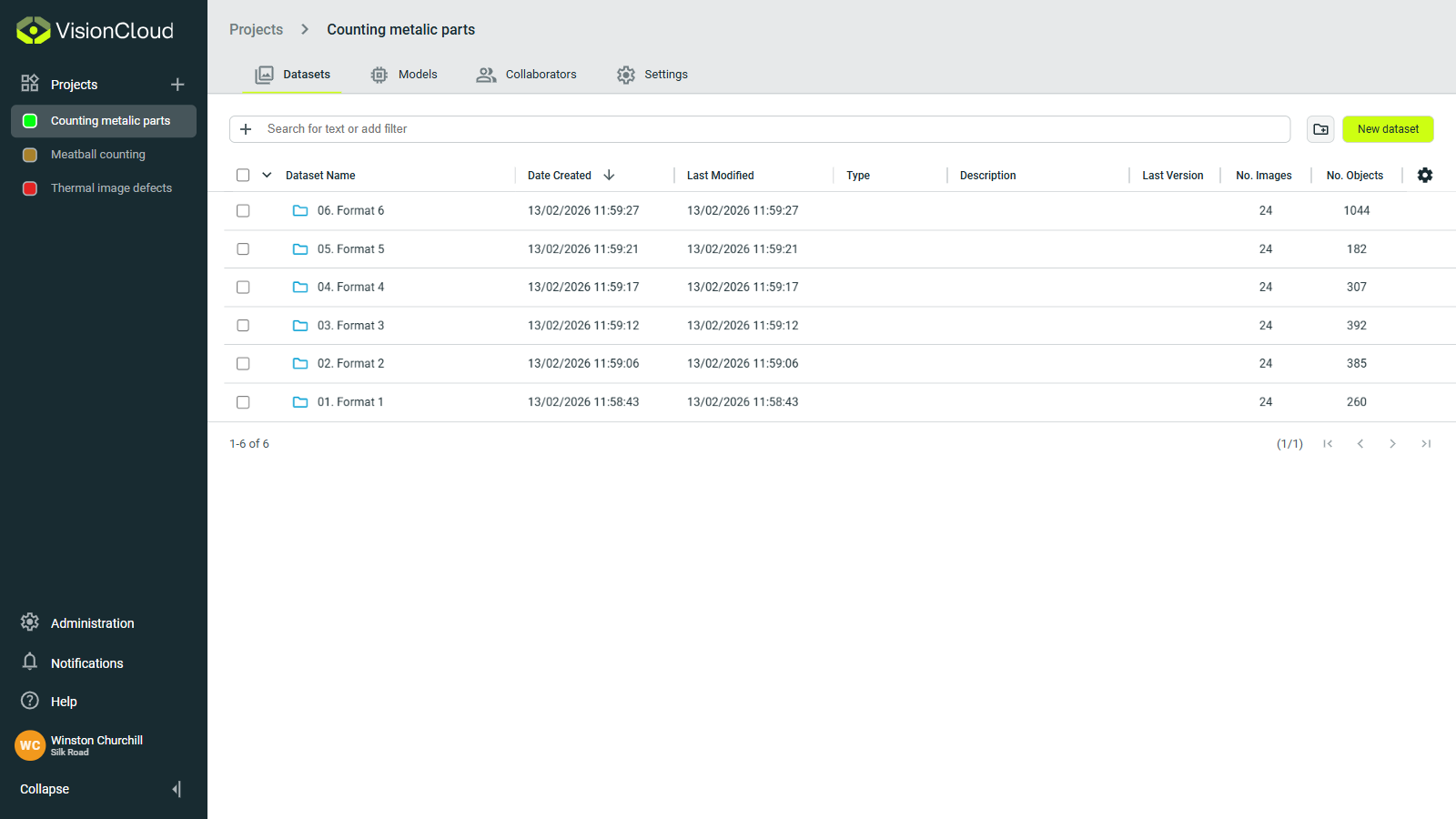
Datasets can be organized into folders for better management. Use the Create folder icon to create folders and then move datasets into them with the move dataset action.
Dataset actions
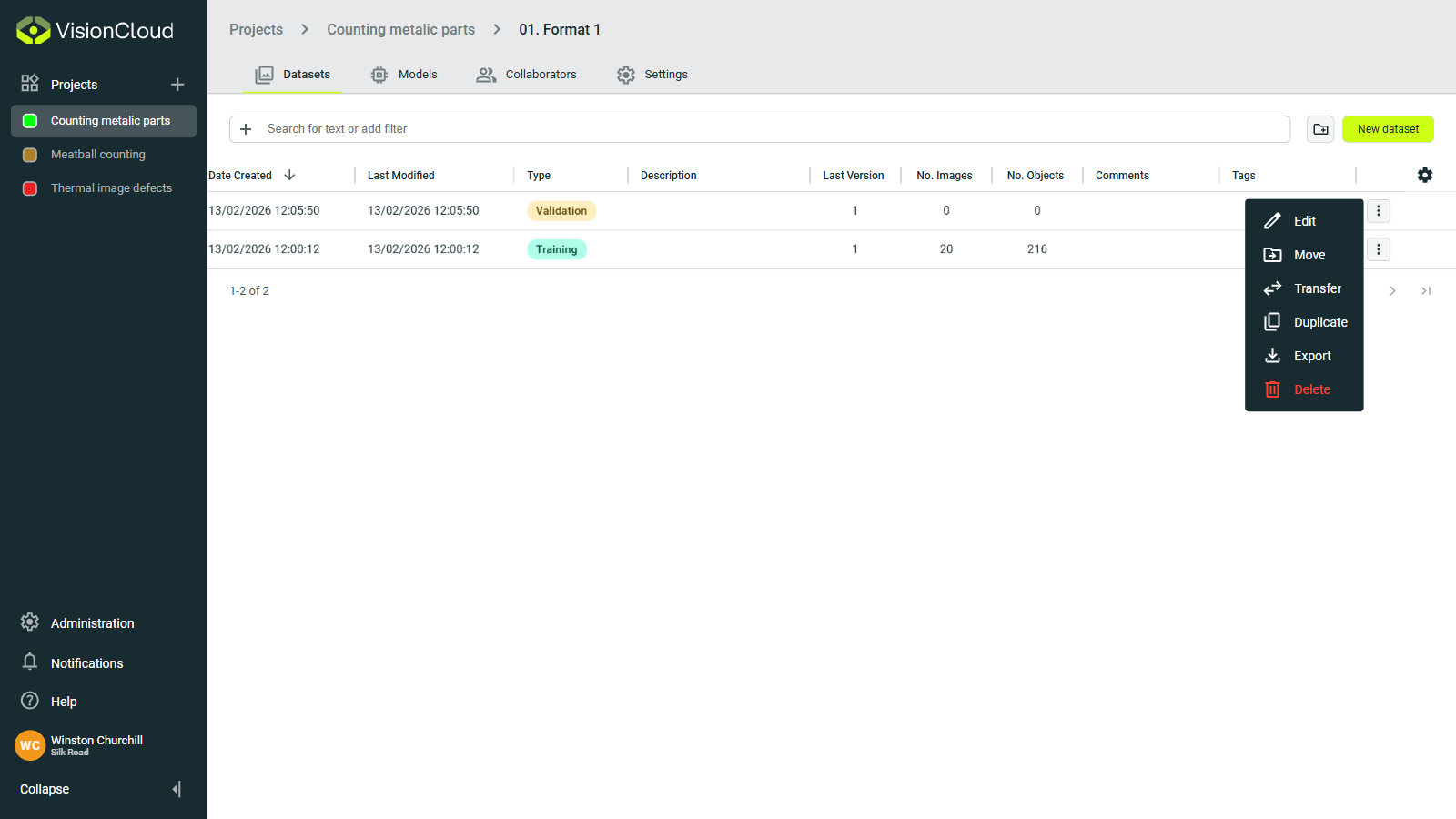
For individual dataset actions, click the ⋮ button on the right side of the dataset row to access actions.
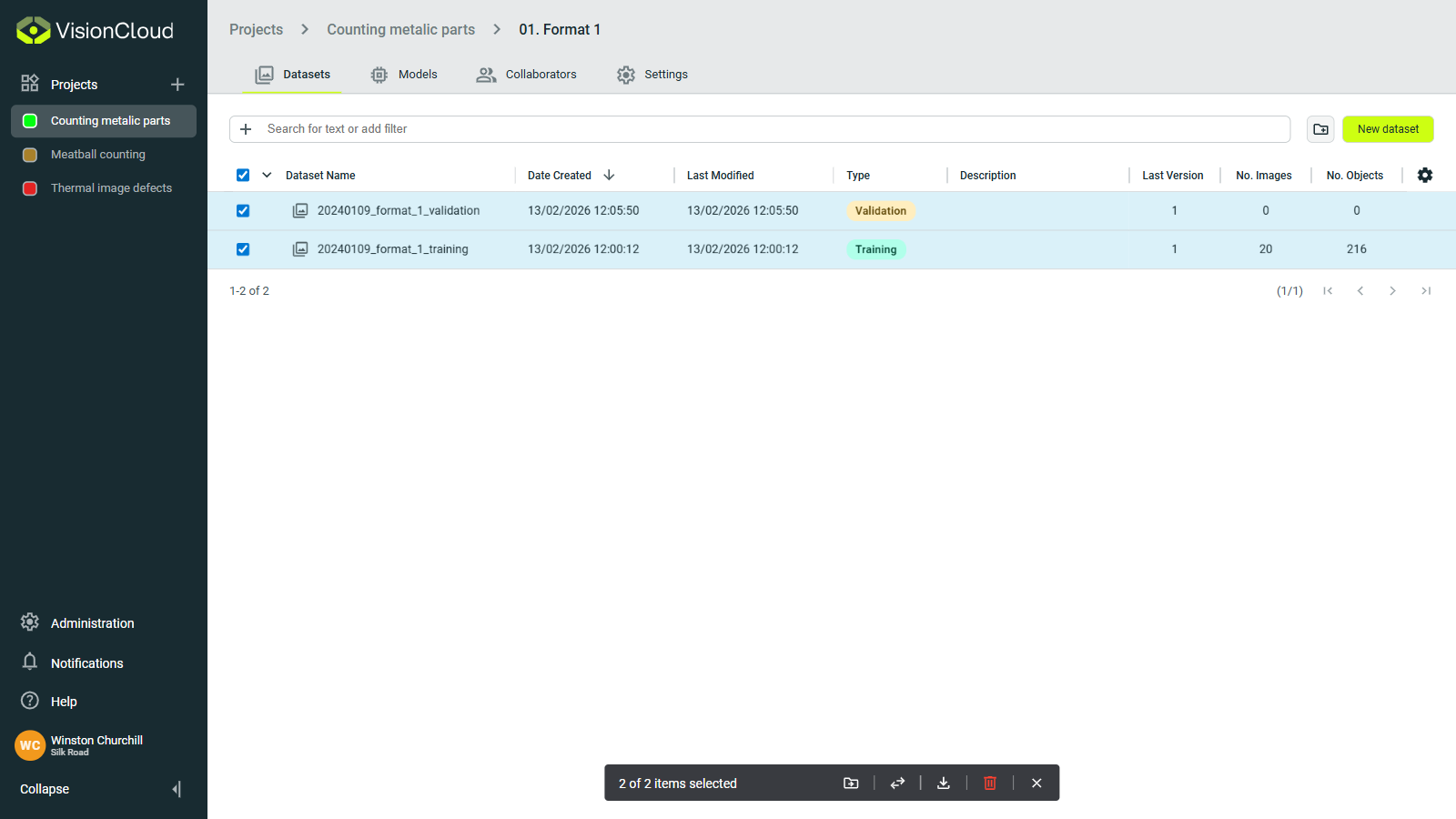
For batch actions, select multiple datasets using the checkboxes on the left side of each row and use the action buttons below the table.
- Edit: Modify dataset name, type and description.
- Move: Move datasets to another folder - individually or in batch.
- Transfer: Move datasets to another project - individually or in batch.
- Duplicate: Create an exact copy of a dataset with all its images.
- Export: Download the dataset as a ZIP file for offline use or backup - individually or in batch.
- Delete: Remove a dataset (requires confirmation) - individually or in batch.