Managing images
Open an image
Click on the image Filename to open the image viewer.
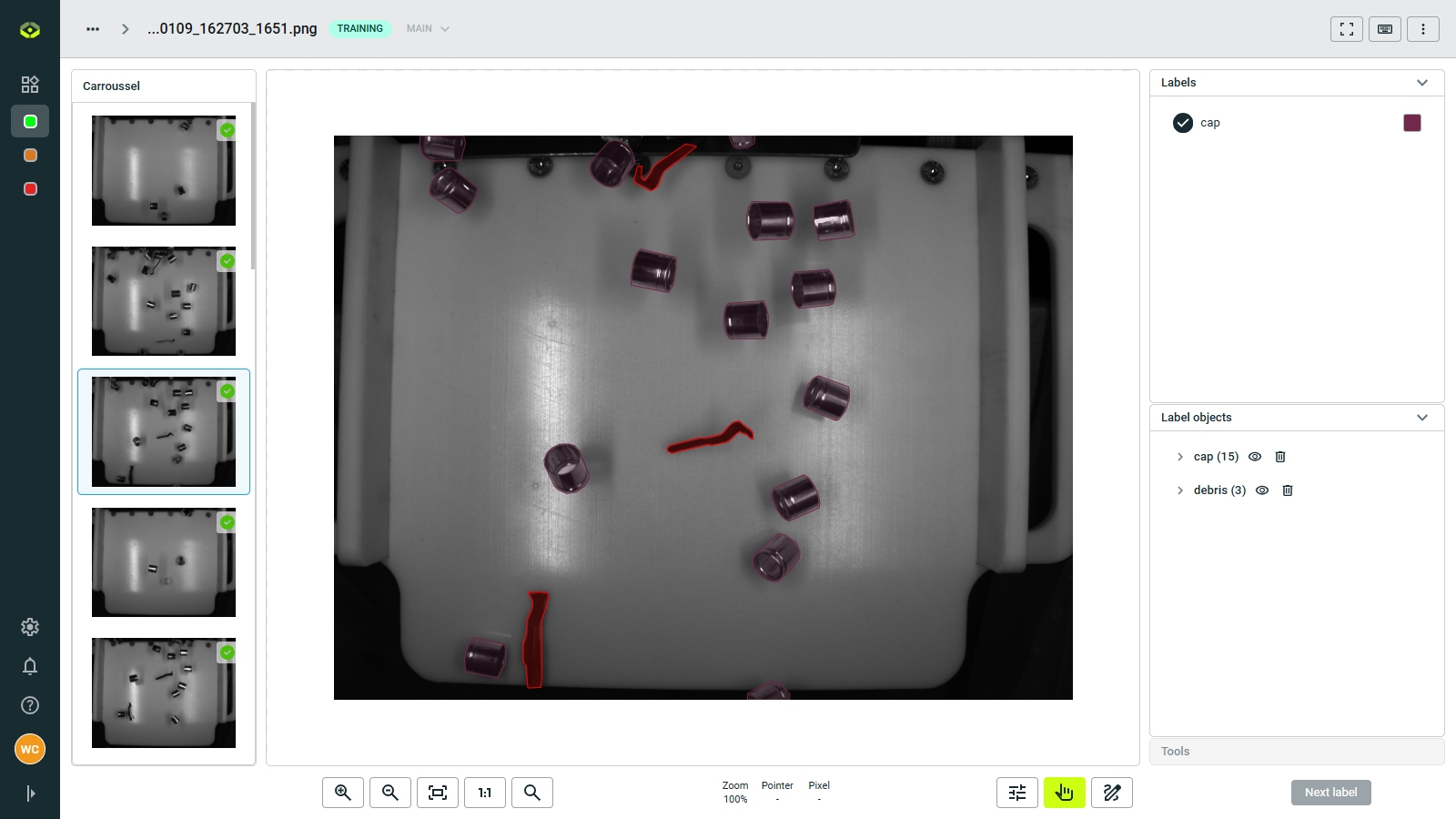
You can navigate between images using the arrow buttons or keyboard arrows. The image viewer displays image details, label objects, and provides tools for labeling.
Additionally, you can zoom in/out and pan around the image for detailed inspection.
Image actions
If you click on the ⋮ in the top right corner on the image viewer, you can see the image actions to be performed on the current image.
These actions are also available when selecting one or multiple images from the images table view.
The available actions include:
✏Classify: Assign a classification label to the selected images - Only for dataset bulk selection.⌦Remove labels: Clear all labels from image - Individually or bulk selection.⊗Ignore/Include: Mark image to be excluded from or included in training - Individually or bulk selection.🗀⇨Transfer: Transfer image to another dataset - Individually or bulk selection.↓Download: Download image - Only for individual image.🗑Delete: Remove image from the dataset - Individually or bulk selection.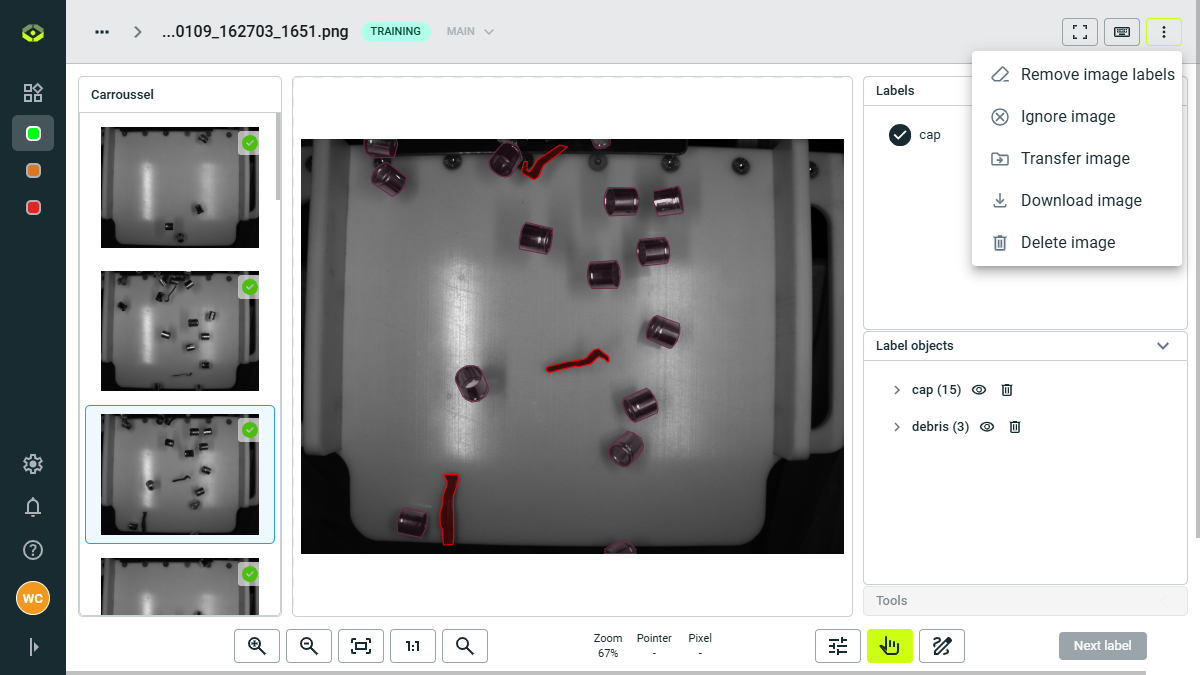
Available actions for individual images.
Image selection tools
To manage images efficiently, the platform provides several selection tools:
- Bulk select: Choose multiple images at once.
- Filter options: Find images based on label status, creation date, etc.
- Sort options: Order by name, date, size, or other criteria.
Advanced filtering
The platform offers powerful filtering capabilities to help you find specific images:
Filter categories
- File name: Filter by specific filenames or patterns.
- Date added: Filter by the date images were uploaded.
- Last modified: Filter by the last modification date.
- Label content: Filter by images containing specific labels or which labels contain specific words.
- Image status: Filter by images ignored or included in training.
- Label status: Filter by labeled, unlabeled, or partially labeled images.
- Image properties: Filter by size.
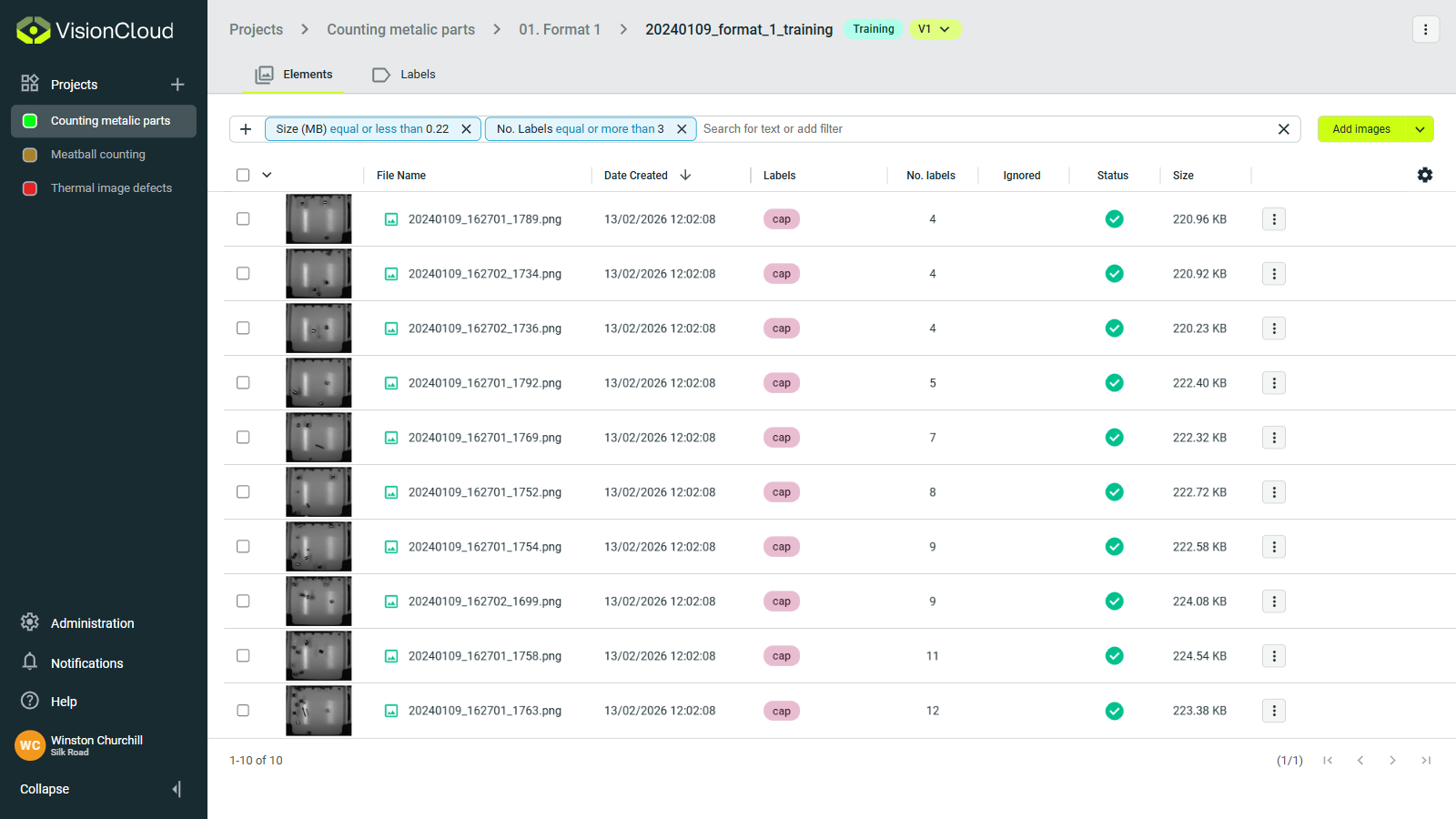
Export dataset
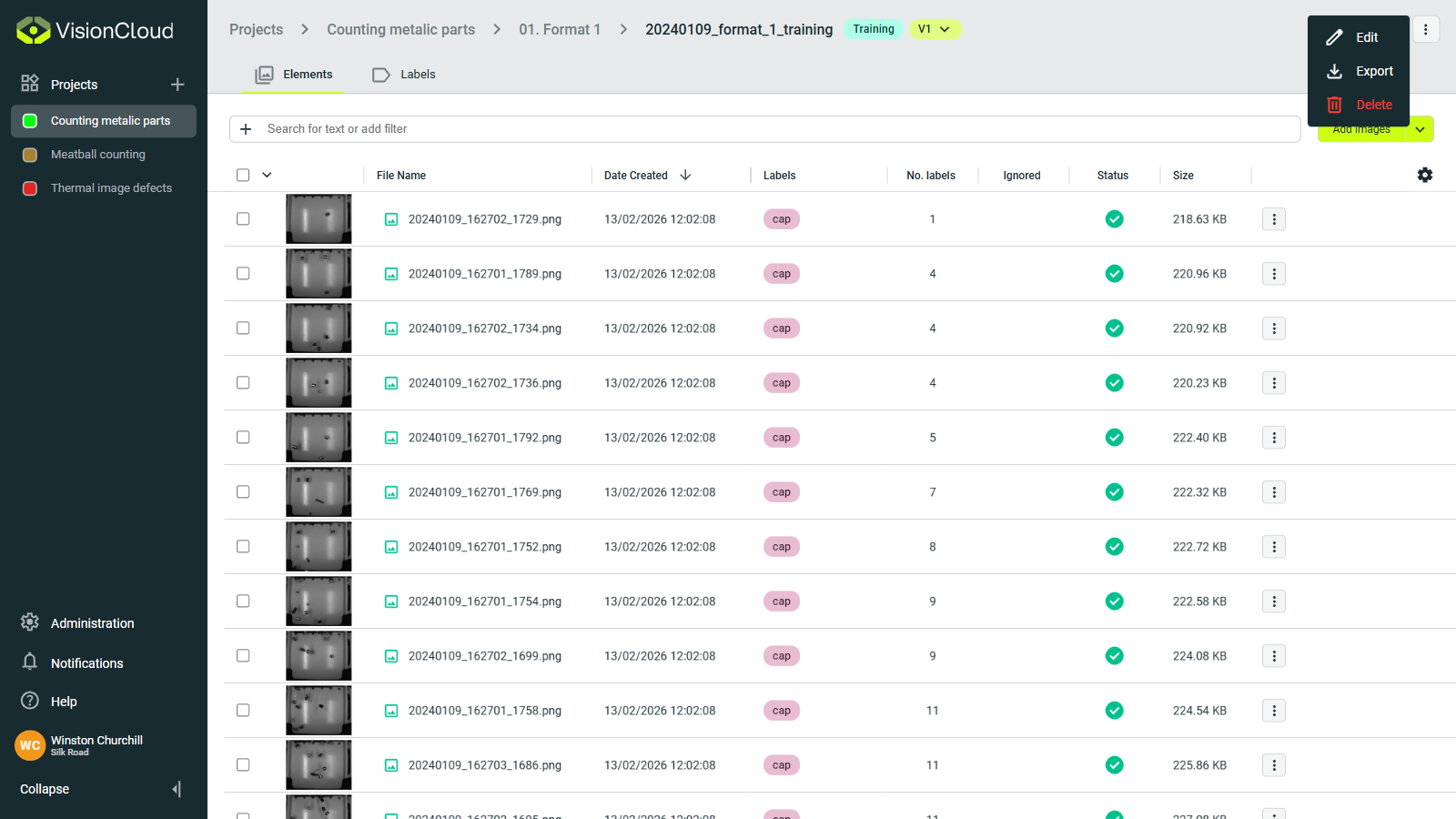
You can export images and label objects from a dataset using the Download button. You have two options:
Download image: Download an image by clicking on the
⋮button within the image's row and selectingDownload. This option downloads only the image file without any labels.Export dataset: Click on the
⋮on the top right corner of the dataset view and clickExport. This option allows you to export the entire dataset as a ZIP file including image objects in a JSON file, with the same structure as described in the uploading images section.
You can also download multiple datasets at once from the datasets table by selecting the datasets and clicking the Export button below the table.
Transfer images
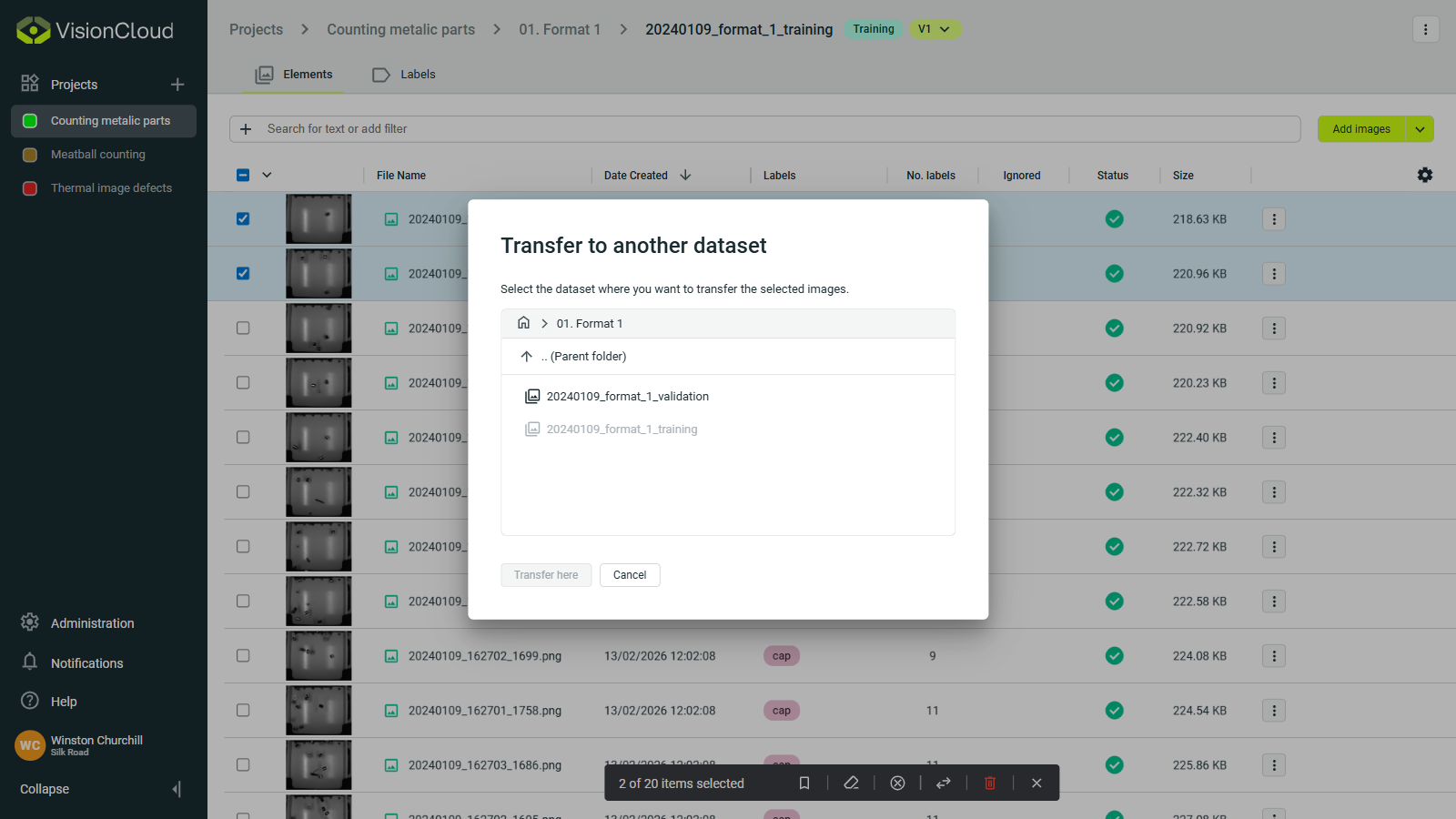
You can move selected images between datasets:
- Select the images you want to move.
- Click the
Transfer imagesbutton in the bottom action bar. - Choose the destination dataset.
- Confirm the operation.