Quick tour
This guide will help you discover VisionCloud in less than 5 minutes. You'll see how to log in and navigate the platform.
Log in
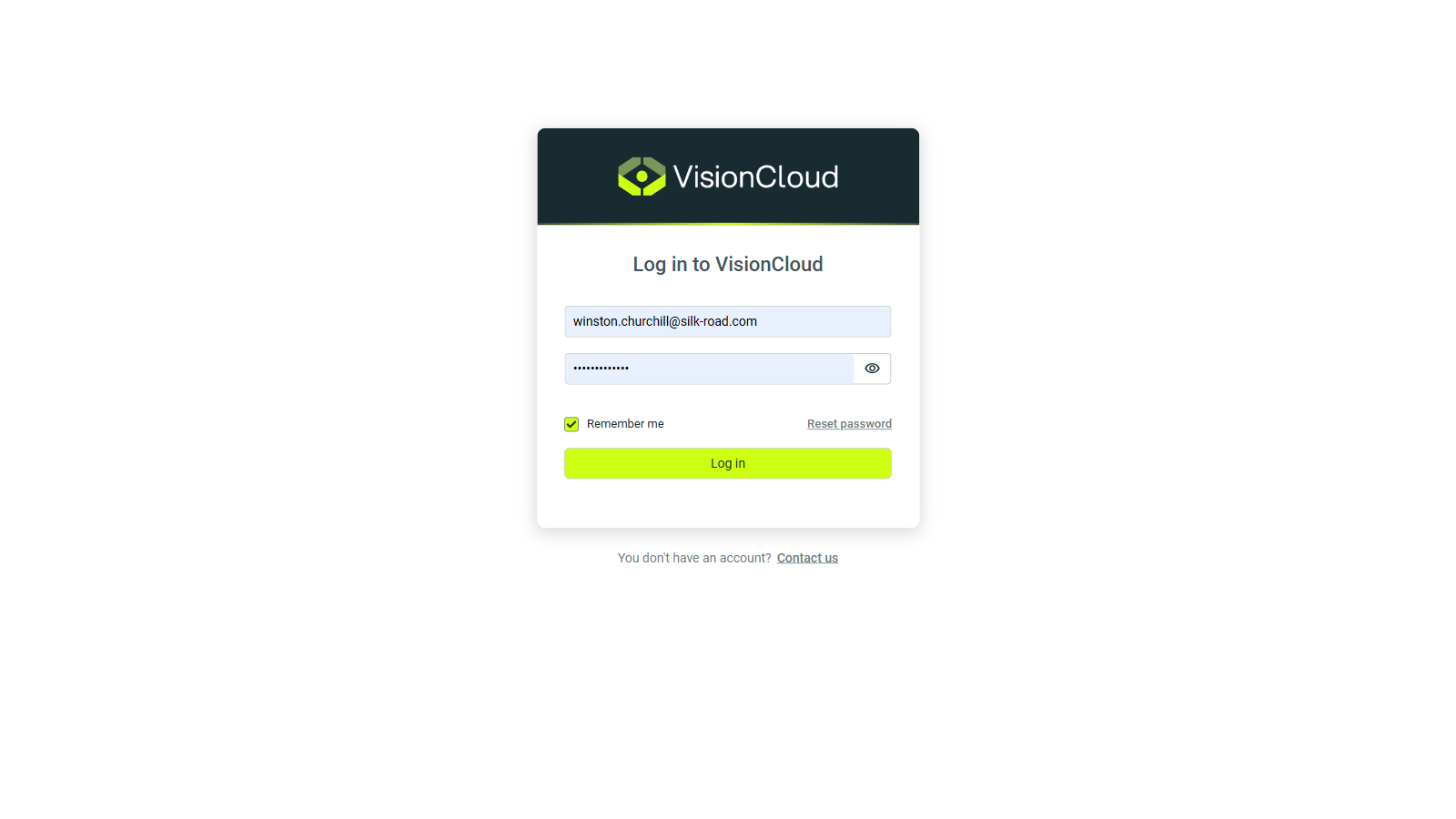
Navigate to VisionCloud with your preferred browser and log in using your email and password. If you don't have an account yet, ask the ID Vision team to create one for you.
➡️ Access VisionCloud from https://cloud.id-vision.com
Select your organization
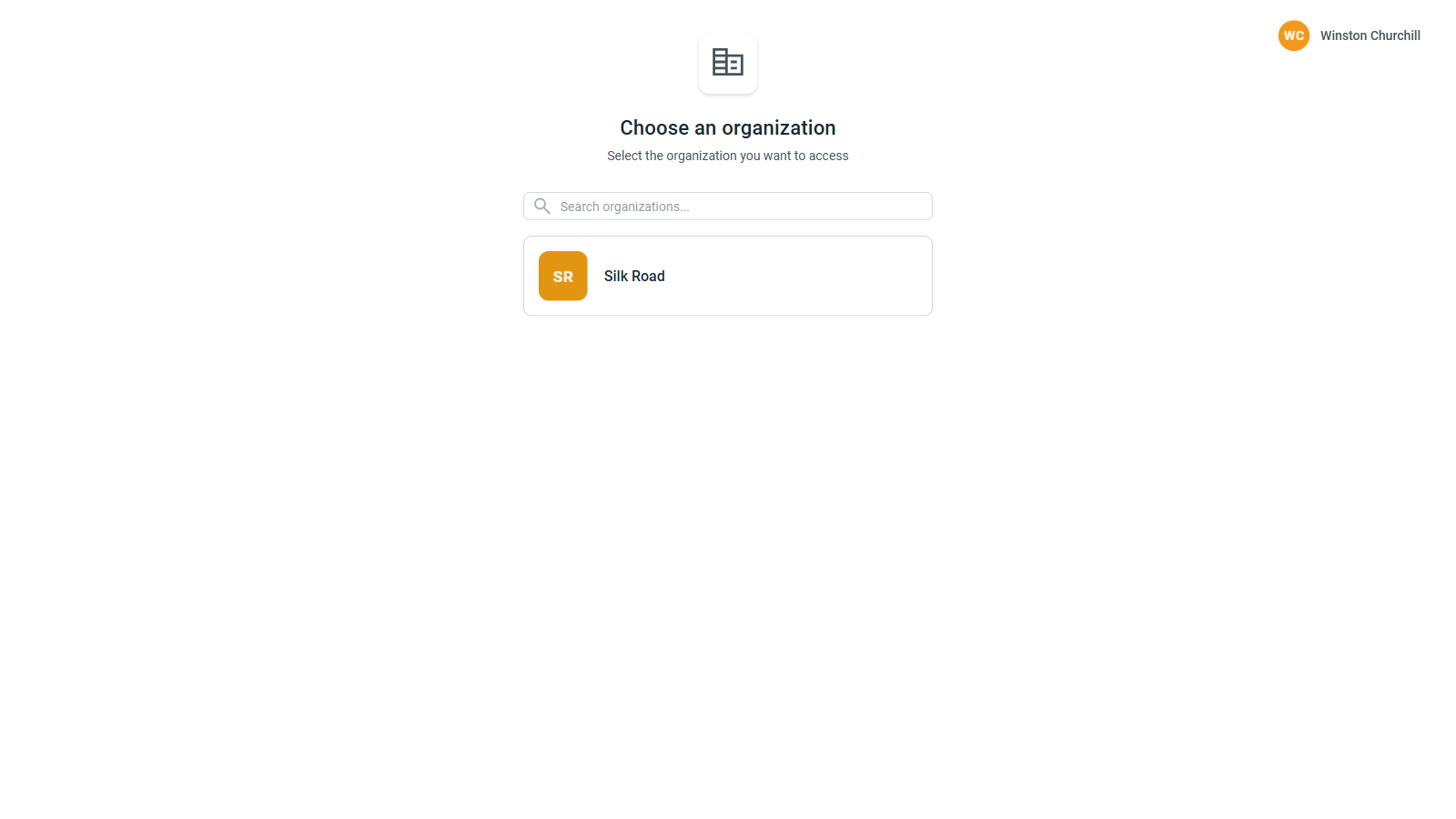
The first time you login, you will have to select your organization from a list.
If you belong to multiple organizations, you can switch between them later. After the initial login, you will be taken directly to your last used organization.
Explore the home screen
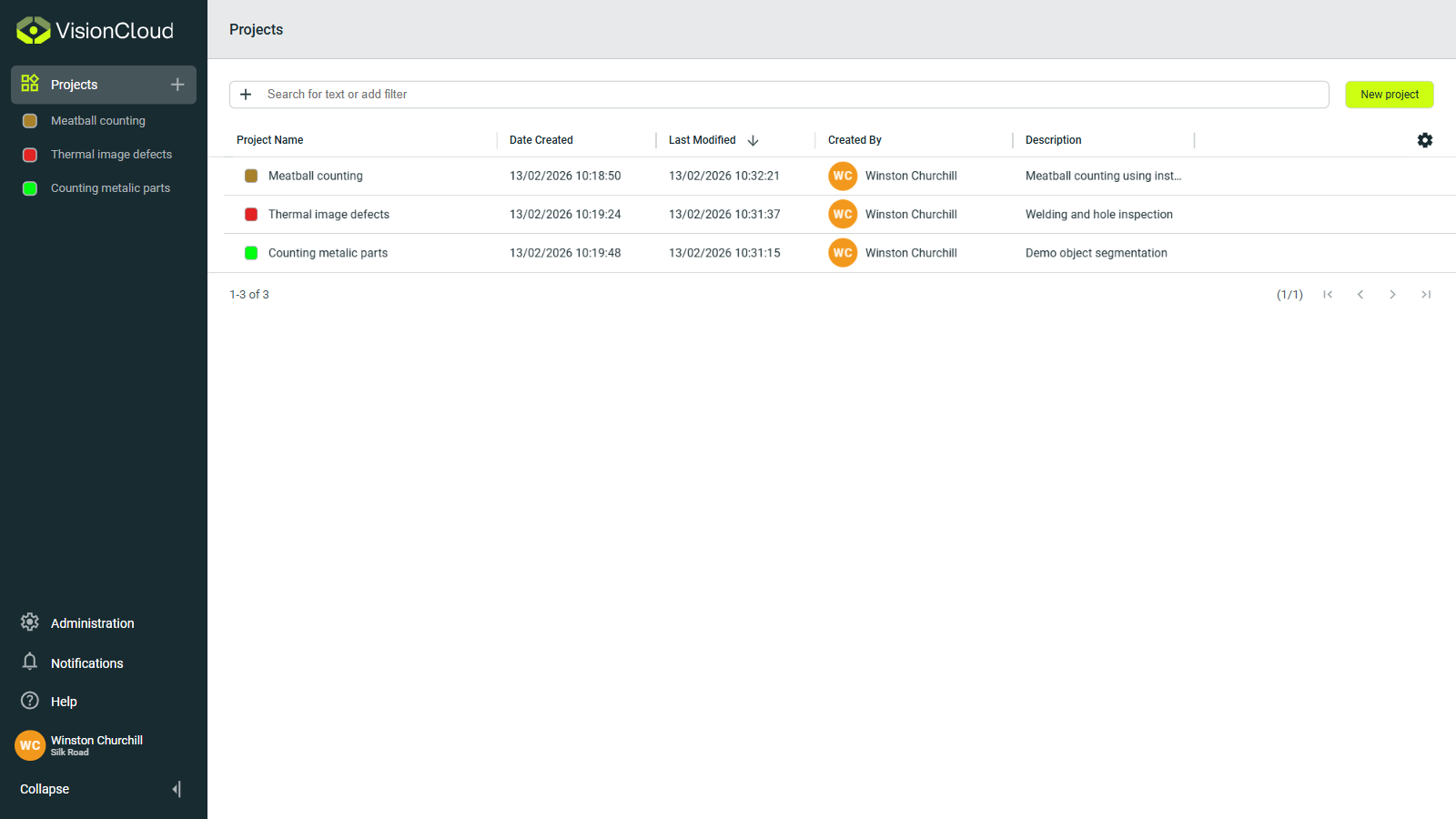
After selecting your organization, you will be taken to the Projects section, which is the home screen. This is the first page you will see when you open VisionCloud.
In the left there is the navigation sidebar, which has shortcuts to the latest projects you have opened, your profile settings, and the administration section.
In the Projects section, you'll see all the projects available to you within your organization. This is what you can do with here:
- Filter projects using the
+button in the search bar. - Search for a specific project by text.
- Create a new project from scratch using the
New projectbutton.
Inside a project
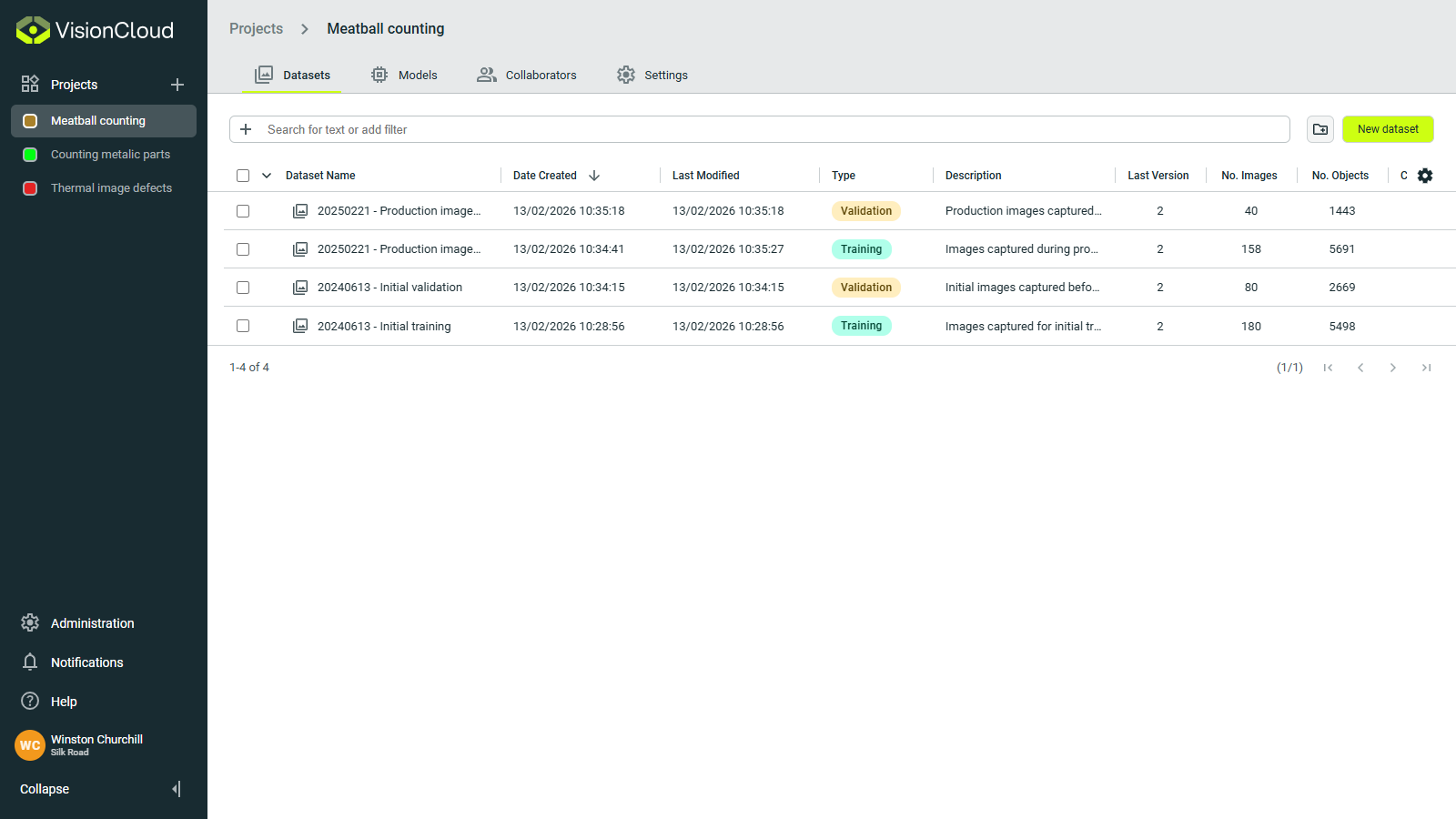
A project is a workspace to organize your datasets and models.
If you click on a project, you will enter the project view. From the top navigation bar you can see its datasets, models, collaborators and configure the project in the Settings tab.