Manage collaborators
Collaborators overview
You can access project's collaborators by navigating to the Collaborators section within the project view.
Here, you can see each member who has been assigned to the project along with a specific role, which determines their level of access to the project’s features.
A new project will only have the owners and administrators of the organization as collaborators by default. They will have full access to the project and can fully add and manage collaborators.
Collaborators addition
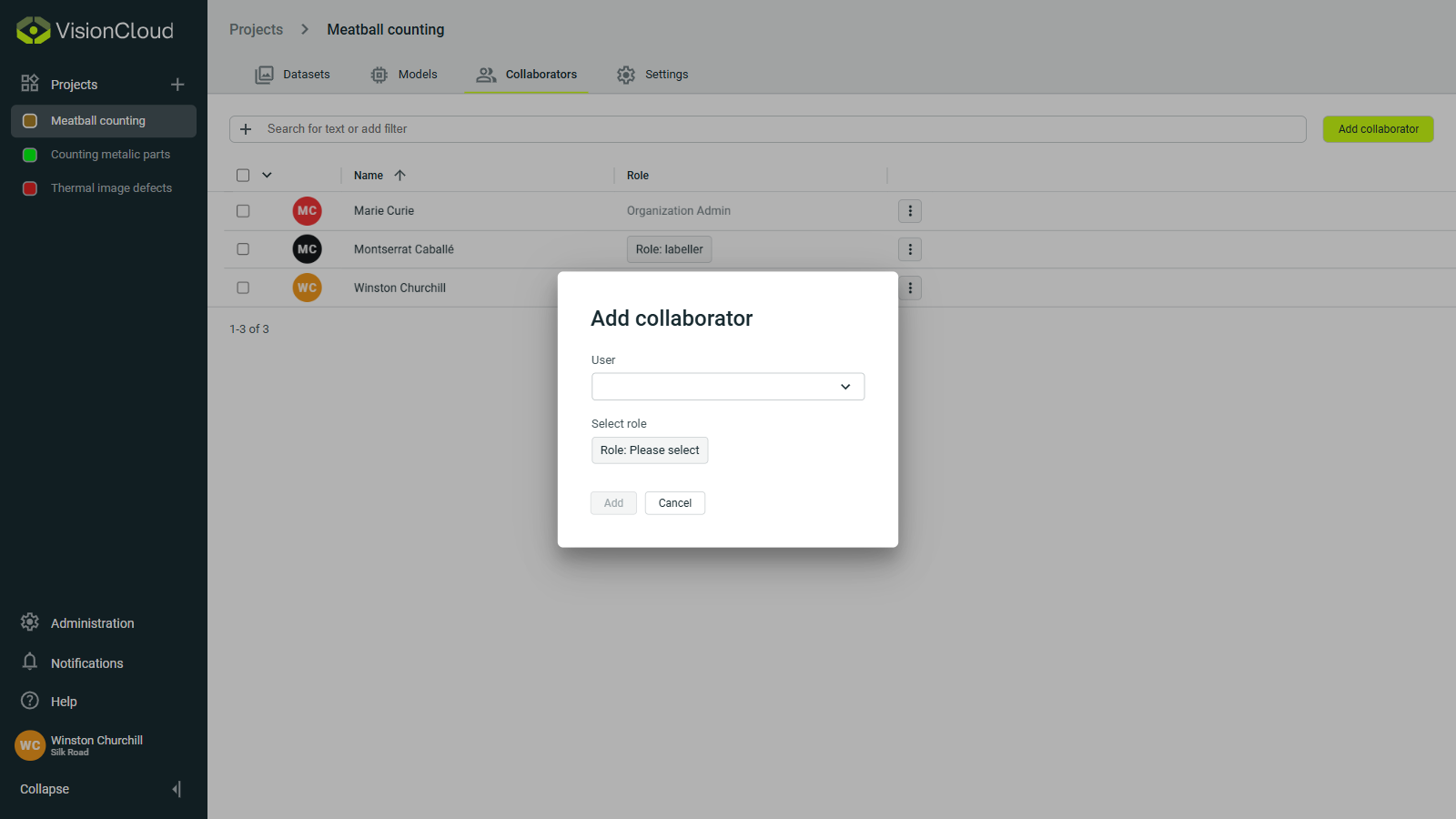
Adding a new collaborator is simple:
- Navigate to your project
- Click on the Collaborators section
- Click the
Add collaboratorbutton - Select the organization member you want to add as a collaborator as well as their role within the project
Role edition
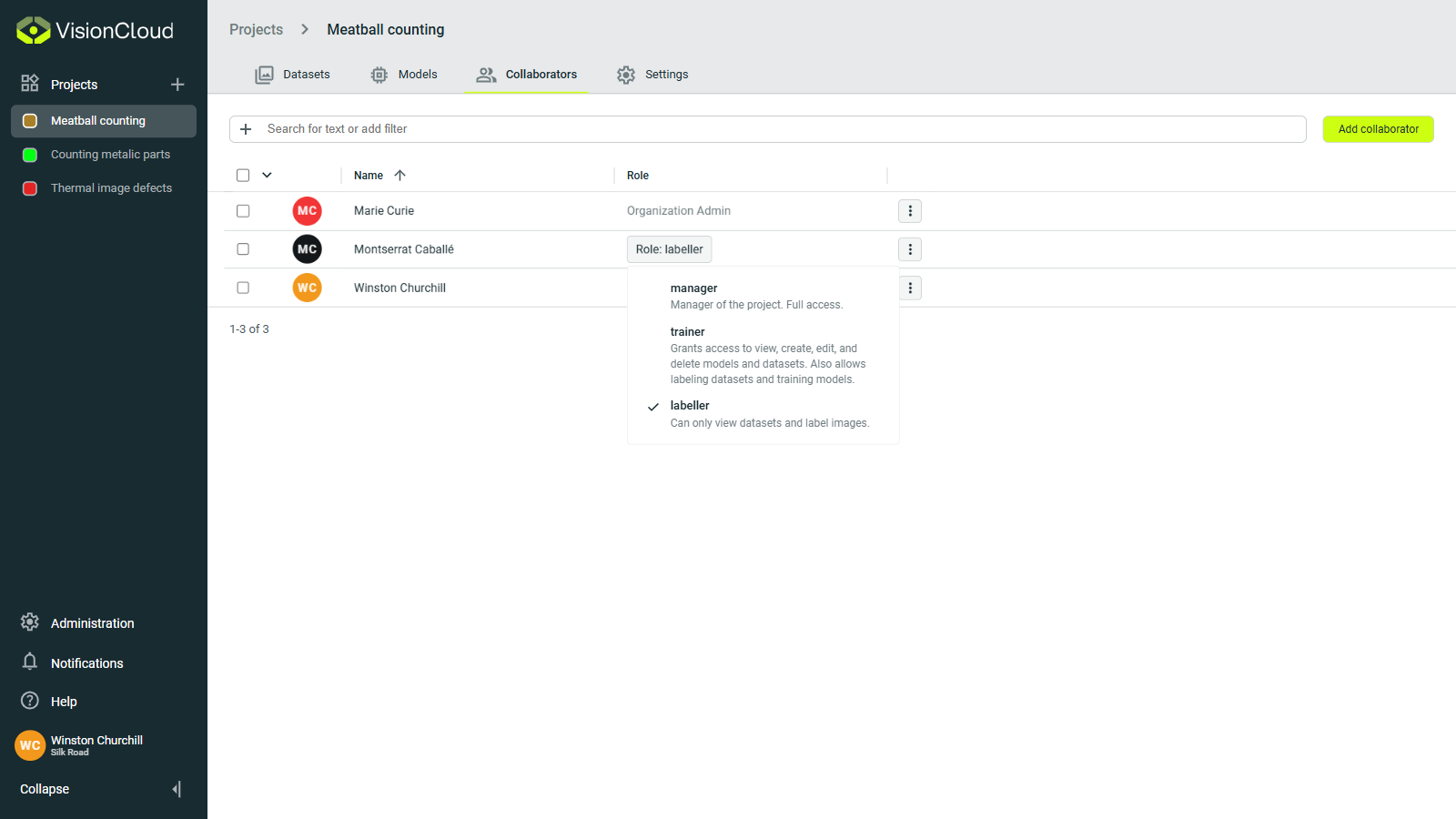
A non-administrator collaborator can have one of the following roles:
- Manager: Full access to all project features, as well as the ability to add and manage collaborators with lower access roles.
- Trainer: Full access to view, create, modify, and delete both datasets and models of the project.
- Labeller: Can view datasets and label project images.
In order to edit a collaborator's role we need to:
- Look for the collaborator's name in the table
- Click the role selector button within their row
- Select the new collaborator's role
Owners and administrators of the organization can't have their role changed, and they are the only ones who can assign the Manager role to collaborators.
Collaborator deletion
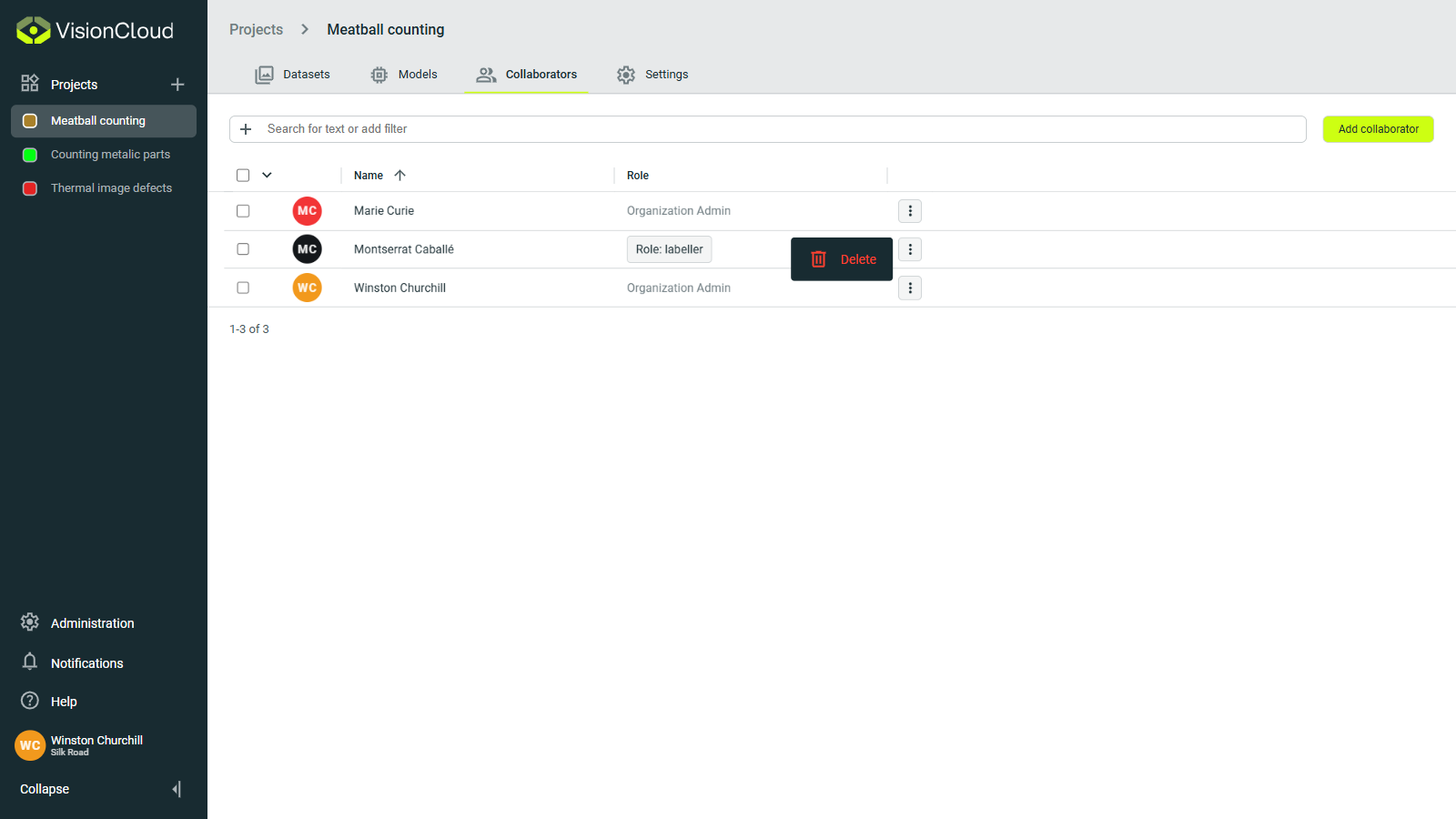
To remove a member’s access to the project, click the actions button ⋮ in their row and select Delete.