Open a Project
Project files are managed internally by the application, they cannot be opened directly from the file system as you would do with a document of a text processor or a spreadsheet.
All the project files that you have saved are listed in the open project window, which you can open from the project menu. All projects are identified by a unique name. You can view some details about the project in the right-side panel, such as the author, the version of OneVision used to create the project, or the date of the latest changes.
To open a project, select it from the list and click Open, or double-click on it.
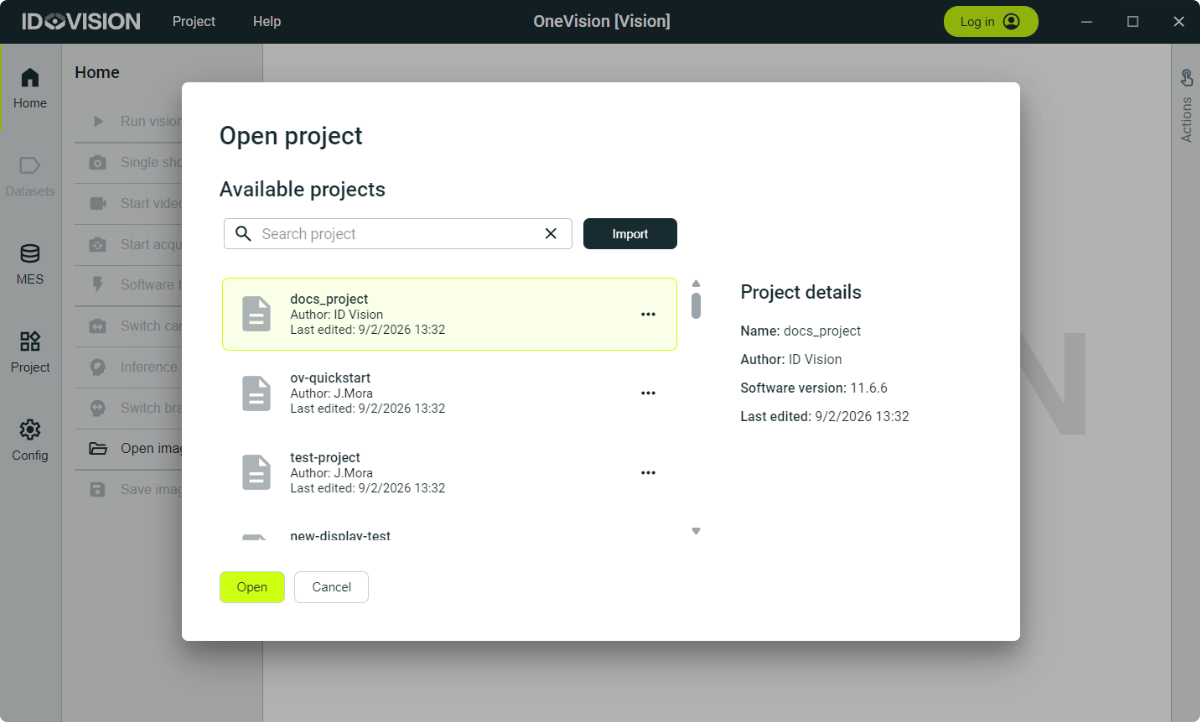
There are other actions you can do at the open project menu:
- Clone project: Click on the three horizontal dots next to the project and select
Clone project. It will require you to enter a new name for the project. - Delete project: Click on the three horizontal dots next to the project and select
Delete project. This option won’t be available if the project is open. - Import a project: To import a project, click the
Importbutton in the bottom of the dialog. It will open a file selection dialog where you can select the project file to import. The imported project will be added to the list of projects.
Retargeting
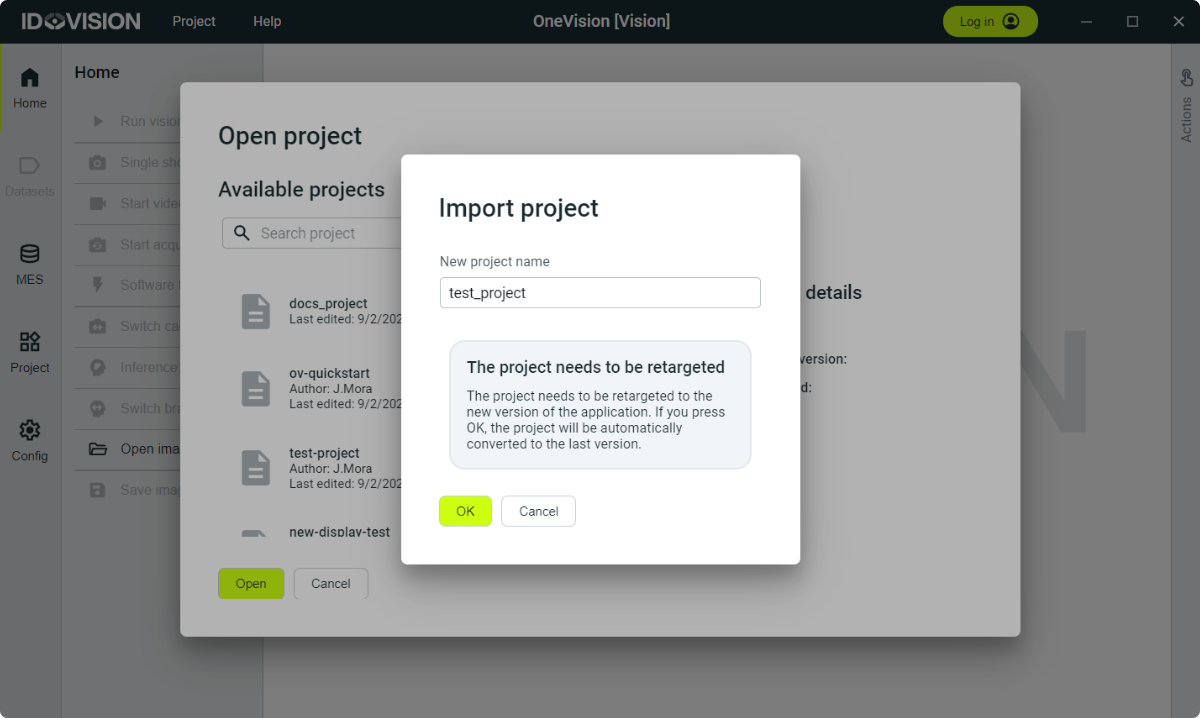
When the project that is imported has been created with an older version of OneVision, before importing the project you will be asked to retarget it to the current version. This is necessary because the project file format may have changed between versions, and the application needs to know how to convert the old format to the new one.
In case of very old versions of the software it might not be possible to retarget the project. In this case, you will need to open the project with the version of OneVision that was used to create it, and recover the information manually, for example copying the program sequences.