Image tools
When seeing the image viewer in a dataset, you have several tools to help you navigate and analyze the images.
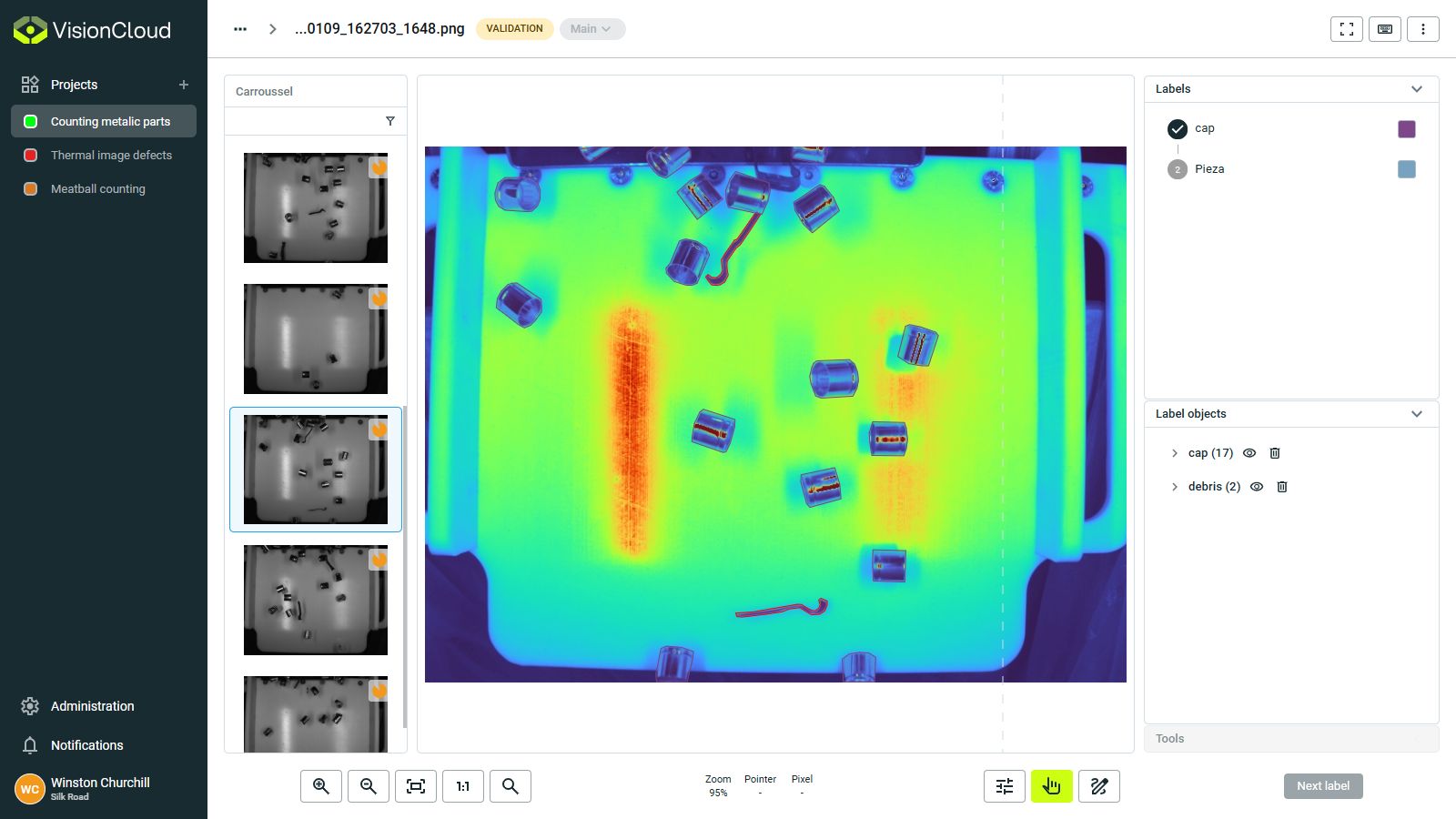
Carousel
The left area shows thumbnails of dataset images:
- Quick navigation: Easily move between images in the dataset.
- Status indicators: See labeling status.
- Filtering options: Filter images by various criteria.
- Collaborative awareness: See which images other team members are working on.
Toolbar
The lower area contains a toolbar with various image manipulation and analysis tools.
Zoom controls
Precisely control image magnification:
- Zoom In/Out: Incrementally adjust zoom level.
- Zoom Slider: Continuously adjust zoom level.
- Fit to Window: Automatically size image to fit the display.
- Pixel-Perfect View: Examine images at actual resolution.
Pixel information
View detailed image information:
- Cursor position: See pixel coordinates under cursor.
- Pixel values: View intensity values at cursor position.
- Zoom level: Current zoom percentage displayed.
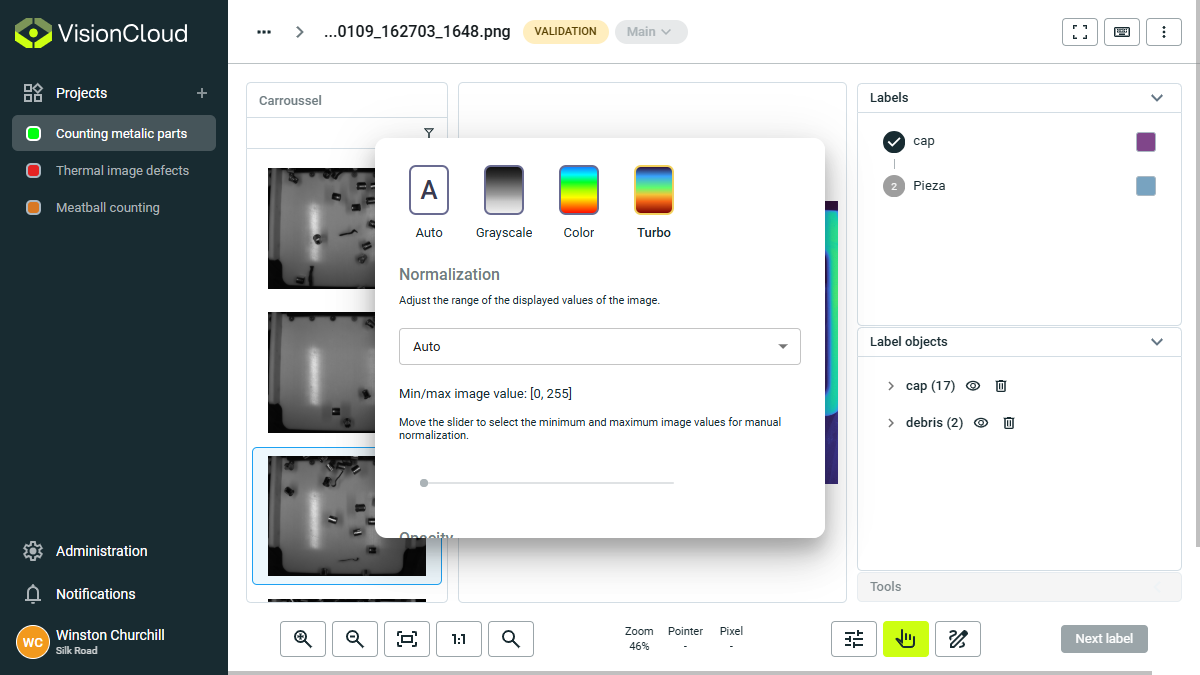
Display settings
Optimize image visibility:
- Color mode:
- Auto: Automatically select color mode based on image type.
- Grayscale: Display image in grayscale.
- Color: Display image in full color.
- Turbo: Enhance contrast for better visibility of features.
- Normalize: Adjust brightness/contrast based on image histogram.
- Auto: Automatic normalization.
- None: No normalization applied.
- Manual: User-defined normalization settings.
- Min/Max: Normalize based on minimum and maximum pixel values.
- Min-max: Advanced min-max normalization.
- Opacity: Adjust image opacity.