Start labeling
Labeling interface
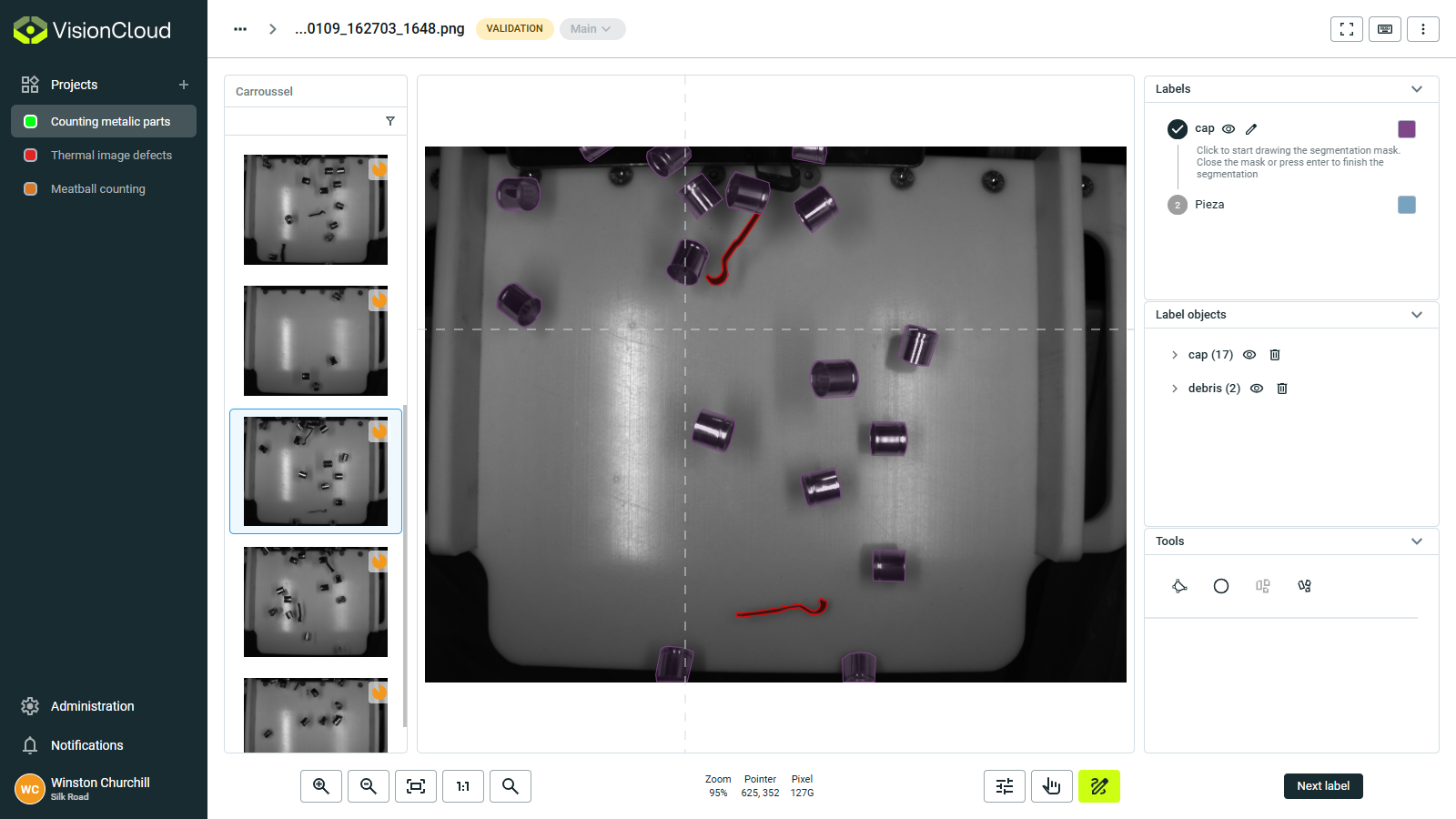
To start labeling your data in Visioncloud, navigate to your dataset and open an image you want to annotate. Once the image is open, you will see the labeling interface with various tools and options.
Action toolbar
On the lower part of the screen, you will find the action toolbar, which contains essential tools for creating and managing annotations. The toolbar includes:
👆Select tool: Choose existing annotations for editing or deletion. This tool allows refining and modifying annotations:- Select & move: Reposition existing annotations.
- Reshape: Adjust annotation boundaries.
- Copy & paste: Duplicate annotations within or across images.
- Delete: Remove unnecessary annotations.
✏️Draw tool: Create new annotations using various shapes (e.g., bounding boxes, polygons).🔍Zoom controls: Adjust the view to focus on specific image areas.🎛️Image options: Access image settings such as brightness and contrast adjustments.Next Label: Move to the next label in the dataset.
Labels
The labels dropdown allows you to select the current label for your annotations. You can choose from the predefined labels you set up in the dataset. Additionally, you can choose to hide or show labels on the image for better visibility.
Label objects
This dropdown allows you to select specific label objects within the image. You can choose to show or hide these objects for better visibility. Also, you can delete selected label objects.
Geometry tools
Tools for creating precise annotations:
- Polygon tool: Create multi-point shapes to outline objects with irregular boundaries.
- Circle tool: Draw circular annotations with adjustable radius.
- Bounding box tool: Create rectangular regions around objects.
- Oriented bounding box tool: Draw rotated rectangles for better fit to angled objects.
- Point tool: Place precise keypoints or landmarks.
Advanced features
Specialized capabilities for efficient annotation:
- Label presets: Save and reuse common annotation configurations.
- Batch operations: Apply classifications to multiple annotations simultaneously.
Shortcuts
On the upper right corner of the image viewer, you will find a ⌨️ that shows a list of keyboard shortcuts to speed up your labeling process. Some common shortcuts include:
- Undo: Ctrl + Z
- Next/Previous label: Arrow Up/Down
- Next/Previous image: Arrow Right/Left
- Label escape: Esc