General Settings
Inside the Settings sub-section of the Configuration section, you have the general settings and the Users settings.
The general settings tab is a miscellaneous collection of settings that configure the behavior of the software. It's divided by services.
Brains
List of parameters that define the configuration of the Brains service. See Brains
Log level: The log level parameter allows you to specify the verbosity of logging messages for the Brain service. It acts as a filter for the types of messages that are displayed or saved. Adjusting this parameter helps in monitoring and diagnosing issues related to Brain operations. See more about software logs
Max. performance GPU: If enabled, the Brain server will automatically configure the GPU for maximum performance and low latency. Requires administrator privileges. By default is enabled.
Max. stored profiles: Maximum number of stored inference profiles per Brain.
Cameras
Configuration of the Cameras service. See Cameras
Log level: This parameter configures the level of detail for logging messages related to the Cameras service. By selecting an appropriate log level, you control the amount of information displayed or saved, which aids in troubleshooting and maintaining camera functionalities. See more about software logs
Controller plugins: Define the full path to a DLL or SO file containing a camera controller plugin. More than one plugin can be configured. To add a plugin, click on the
+button and paste the path in the text input.
Communications
Parameter configuration of the Communications service See Communications
Log level: The log level parameter adjusts the detail level of logging messages for the Communications service. It is essential for monitoring communication activities and diagnosing issues related to data transmission. See more about software logs
Controller plugins: Define the full path to a DLL or SO file containing a communication controller plugin. More than one plugin can be configured. To add a plugin, click on the
+button and paste the path in the input.
Graphical interface
List of parameters that define the configuration of Graphical User Interface (GUI). See Home
Log level: The log level parameter in the Graphical User Interface (GUI) settings filters the types of logging messages shown. It is useful for adjusting the amount of information displayed based on your debugging or operational needs. See more about software logs
Auto update interval: This interval determines how frequently, in milliseconds (ms), the software retrieves new data from its source and updates the table in the Mes section when the
Auto updateis active.Open in fullscreen: This parameter determines whether the software starts in fullscreen mode upon launch. You can enter or exit fullscreen mode during use by pressing the F11 key. Disables by default.
Open dev. tools: If enabled, the user will be able to open the developer tools with
Ctrl+Shift+Iin the desktop application.Web server: If enabled, allows remote access to the software by the web application. Only one connection can use the software at a time.
Web server port: This parameter defines the network port where the server hosting the software is started. This port number specifies the endpoint through which clients can connect to and communicate with the software over the network. The default port is
5001. If the web server parameter is disabled, the web server port selector will also be disabled.GUI health monitor: If enabled, the system will log performance metrics of the client side every set interval.
GUI health monitor interval: Configure the GUI health monitor interval in seconds.
Mes
Configuration of the Mes service. See Mes
Log level: The log level parameter determines the verbosity of logs generated by the MES service. It helps in tracking and troubleshooting activities related to data saving, traceability, and product inspection within MES. See more about software logs
Enable/Disable MES: This parameter controls the activation of the MES service. When enabled, the MES service is operational, allowing data to be saved and providing traceability for inspected products.
If the Enable/Disable MES parameter is disabled, all the following parameters will also be disabled.
Units buffer size: Specifies the size of the queue for Units waiting to be saved in the database within MES. This queue manages the flow of data for traceability of inspected products.
Folder path: The absolute path to the folder where all the data of the MES service will be stored. By default, this is set to
C:/OneVision/Mes.Max time range: Maximum number of days that information about a Unit will be retained within the MES service. Units older than this specified time range will begin to be deleted from the system.
Max data size: This parameter specifies the maximum allowed size, in MB for capture data, including images and image data files, within the MES service. If the total size of the data exceeds this specified value, the oldest data will begin to be deleted to maintain storage limits.
Max number of units: The maximum number of Units or entries in the database that can be stored within the MES service. If the number of units exceeds this specified value, the oldest units and their related data will begin to be deleted.
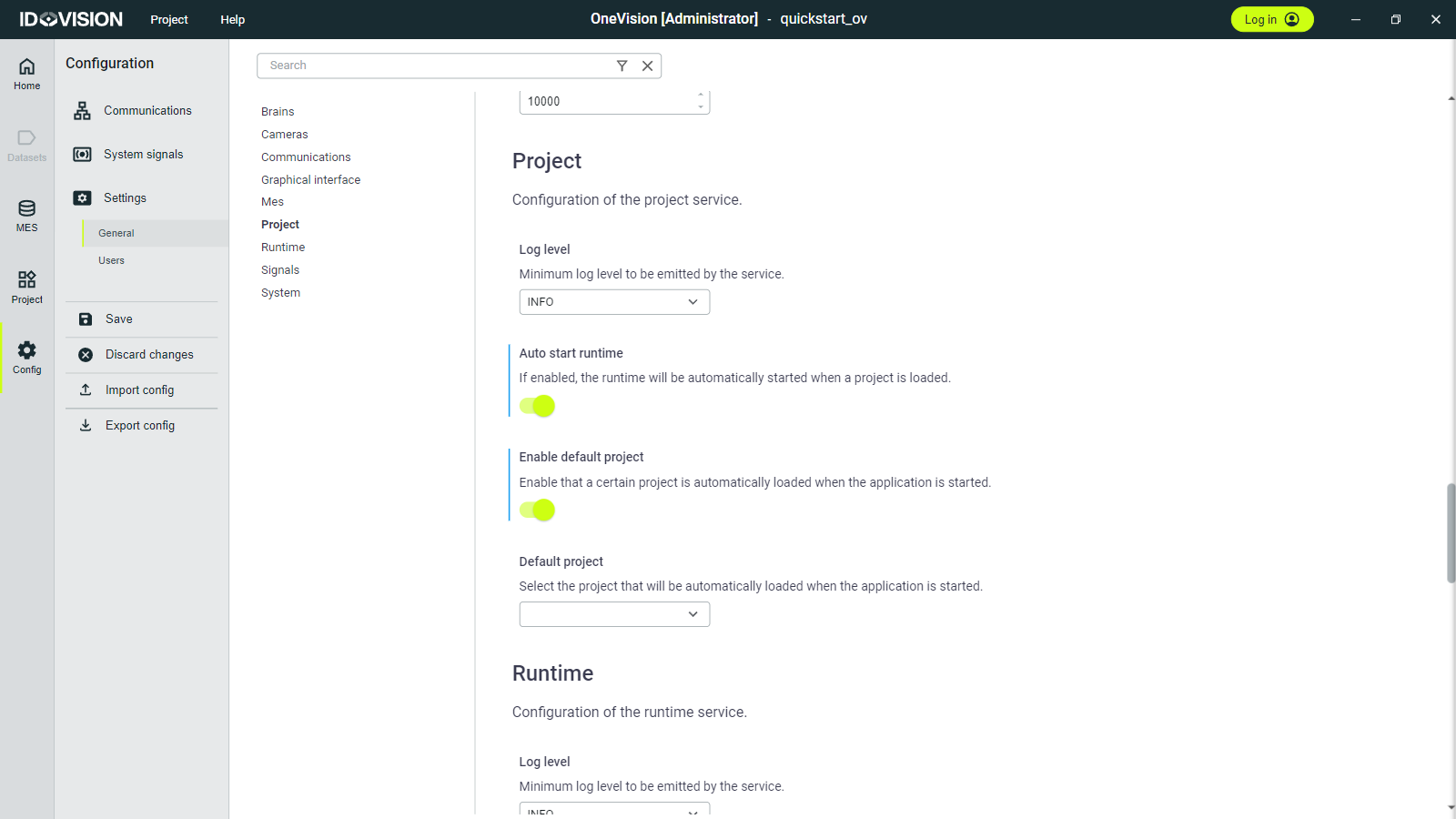
Project
Configuration of the Project service.
Log level: The log level parameter controls the detail level of logging messages specific to the Project service. Adjusting this parameter allows you to monitor runtime operations and detect issues related to project management efficiently. See more about software logs
Auto Start Runtime: When enabled, automatically starts the runtime when a project is loaded. This can be useful in scenarios where the PC restarts, as it eliminates the need for a user to manually click on the start runtime, allowing the process to start automatically.
Enable default project: When enabled, automatically loads a specified project when the software is started.
Default project: Specifies which project will be automatically loaded when the software is started if the Enable default project is active. This is a selector where the user can choose from all the projects that have been created in the software.
Runtime
Configuration of the Runtime service.
Log level: The log level parameter in the Runtime service configures the amount of detail in logging messages. This setting is crucial for monitoring runtime activities and diagnosing issues related to the execution environment. See more about software logs
Plugins: Define the full path to a DLL or SO file containing a runtime plugin. More than one plugin can be configured. To add a plugin, click on the
+button and paste the path in the input.
Signals
Configuration of the Signals service.
Log level: The log level parameter adjusts the verbosity of logging messages for the Signals service. It is essential for monitoring signal processing and operational statuses within the software. See more about software logs
Heartbeat period: This parameter specifies the interval, in milliseconds, at which the heartbeat system signal is sent to indicate the software's operational status.
System
Configuration of the System service.
Log level: The log level parameter in the System service controls the detail level of logging messages. It is used to monitor system-wide operations and diagnose issues affecting overall software performance. See more about software logs
Launch on startup: When enabled, ensures that the software automatically starts when the operating system is started. This allows the software to be ready for use without manual intervention each time the system boots up.
Launch on background: When enabled, allows the software to start and run in the background without displaying its user interface. Clicking on the OneVision icon in the taskbar will open the software window. If the Launch on startup parameter is disabled, the Launch on background parameter will also be disabled.
Health monitor: If enabled, the system will log performance metrics every set interval.
Health monitor interval: Configure the health monitor interval in seconds.
Station name: Friendly name of the current station which will be displayed in the software's top bar.