Run Your Application
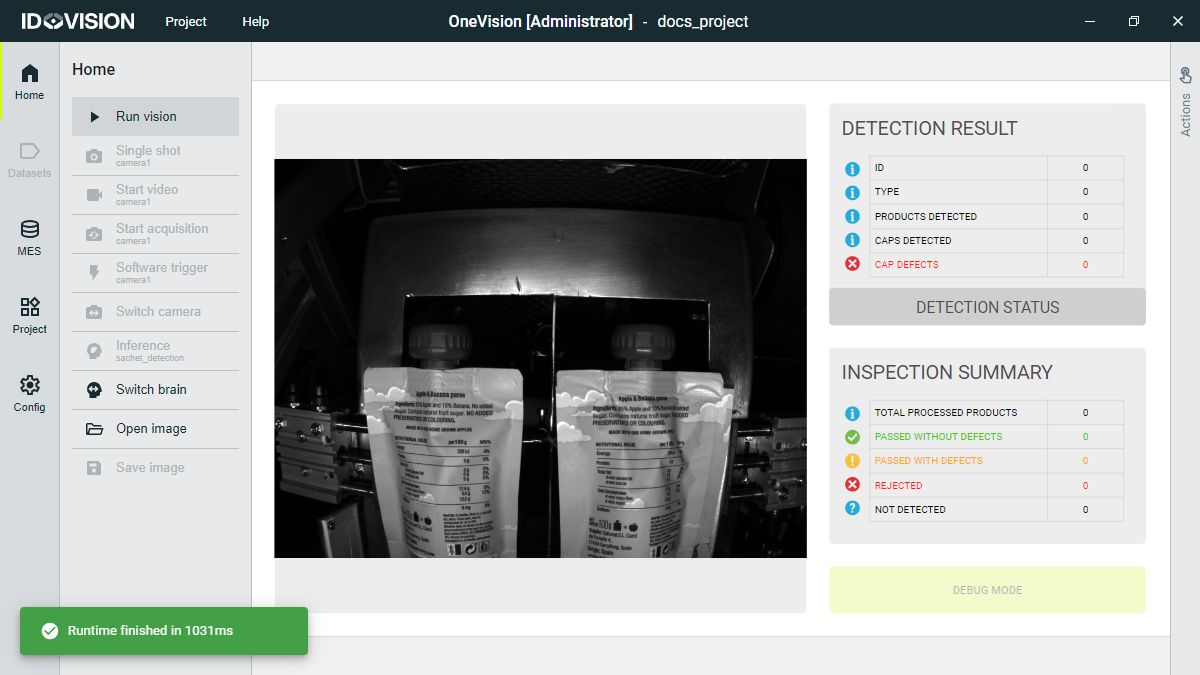
The main way to run your application is by using the Run vision button in the Home section. This will run your scripts. When the scripts are finished, a green notification will appear.
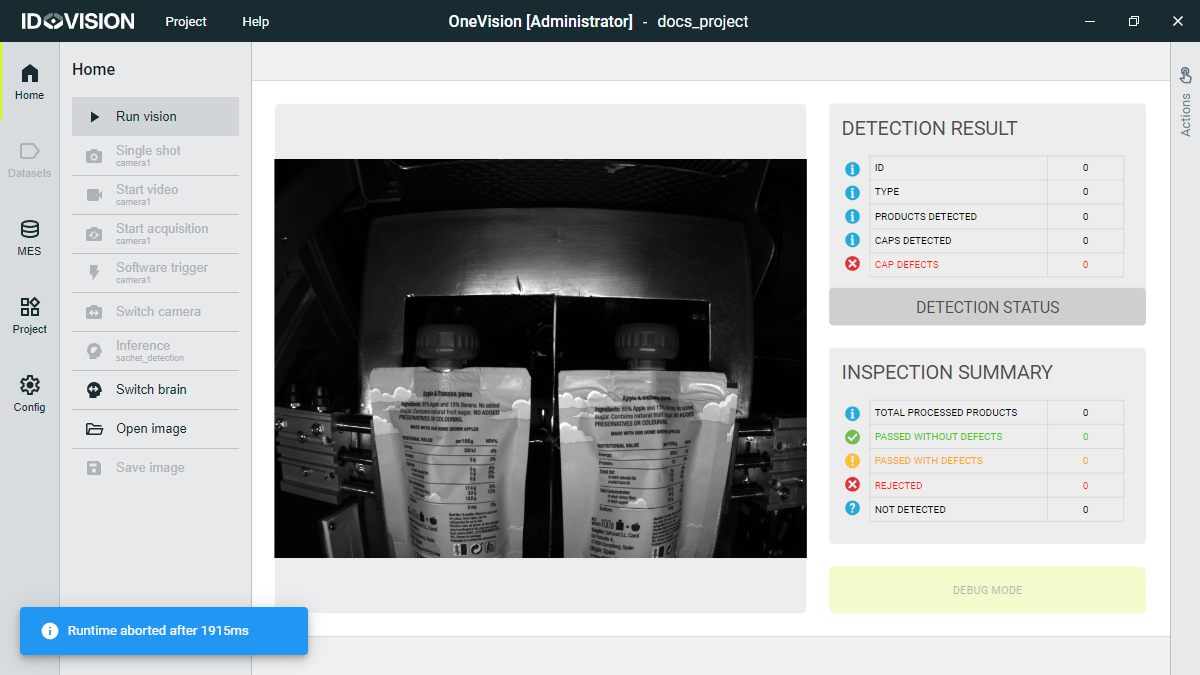
You can stop the runtime with the Stop vision button or with a stop command written in the code. When the runtime is stopped, a blue notification will appear.
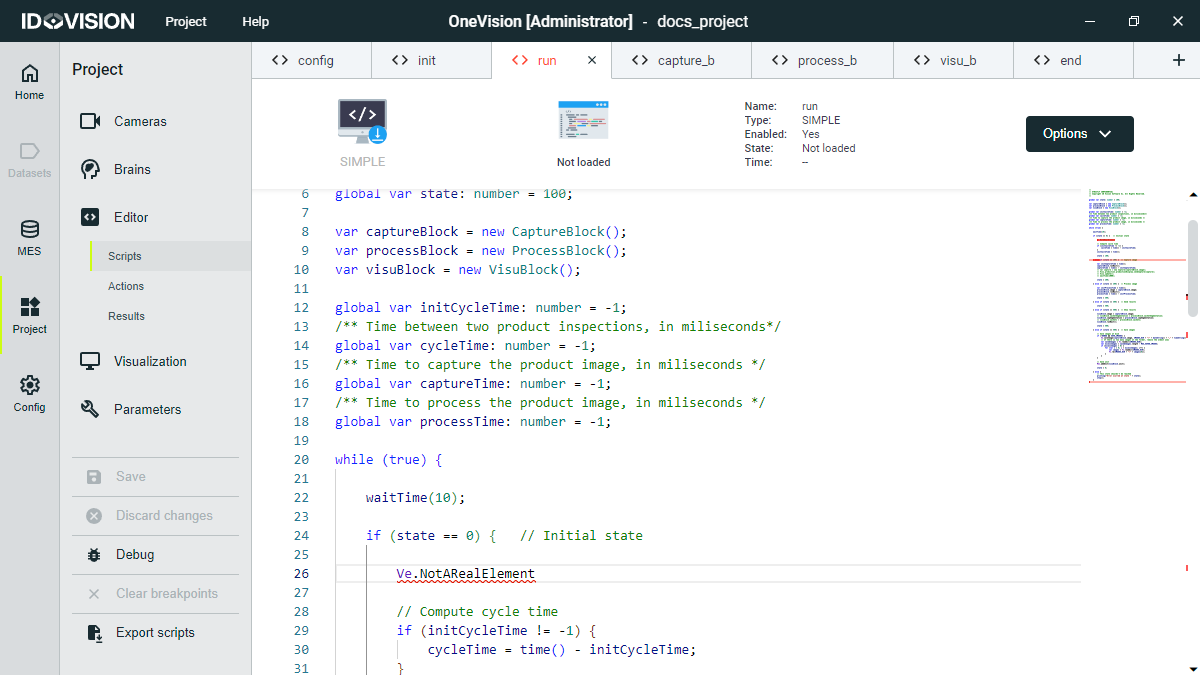
If there's a syntactic error in your code, the error and the script will be highlighted in red and the Run vision button will be deactivated. By hovering over the error, a message will indicate what type of error it is.
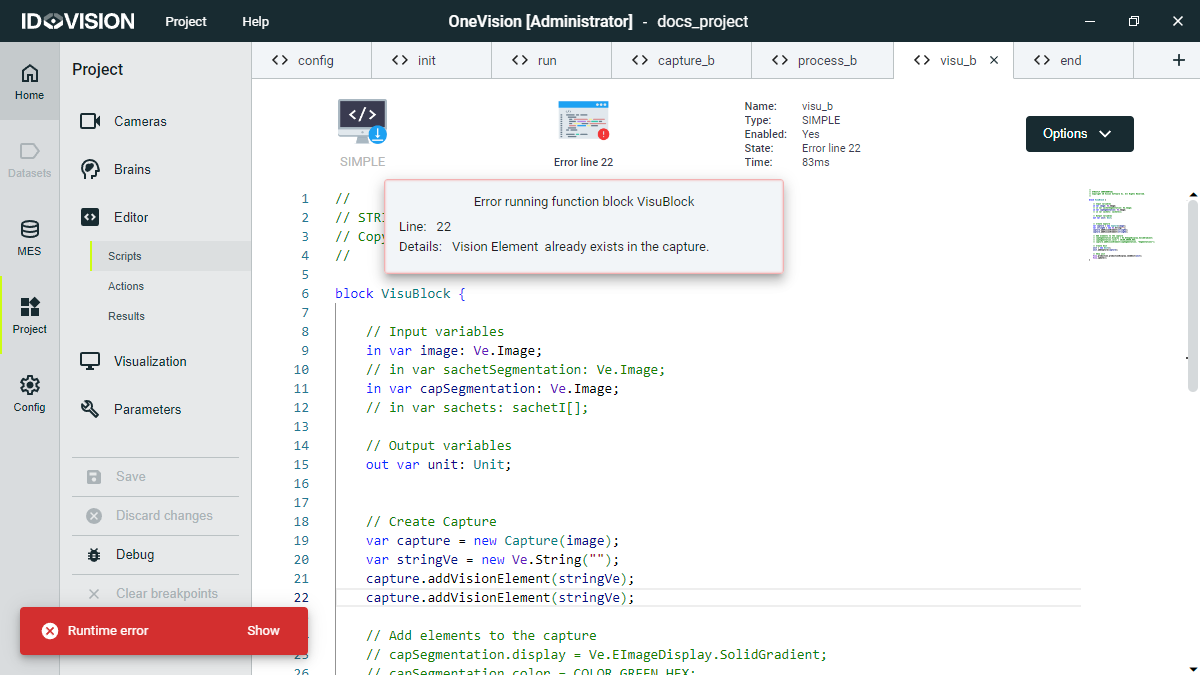
If there's a runtime error during the execution of the scripts, a red notification will appear. If you click Show, you will be redirected to the script that contains the error. At the top, a message will indicate the line where the error occurred, and by clicking on it, another message will pop up with more information about the error.
You can also run your application in debug mode from the Projects section.