Add Elements
Now we know how to add pages and change between them, we can start adding visualization elements to these pages. Click the first button in the right side bar of the Visualization section to open the add element menu and choose between all the different elements.
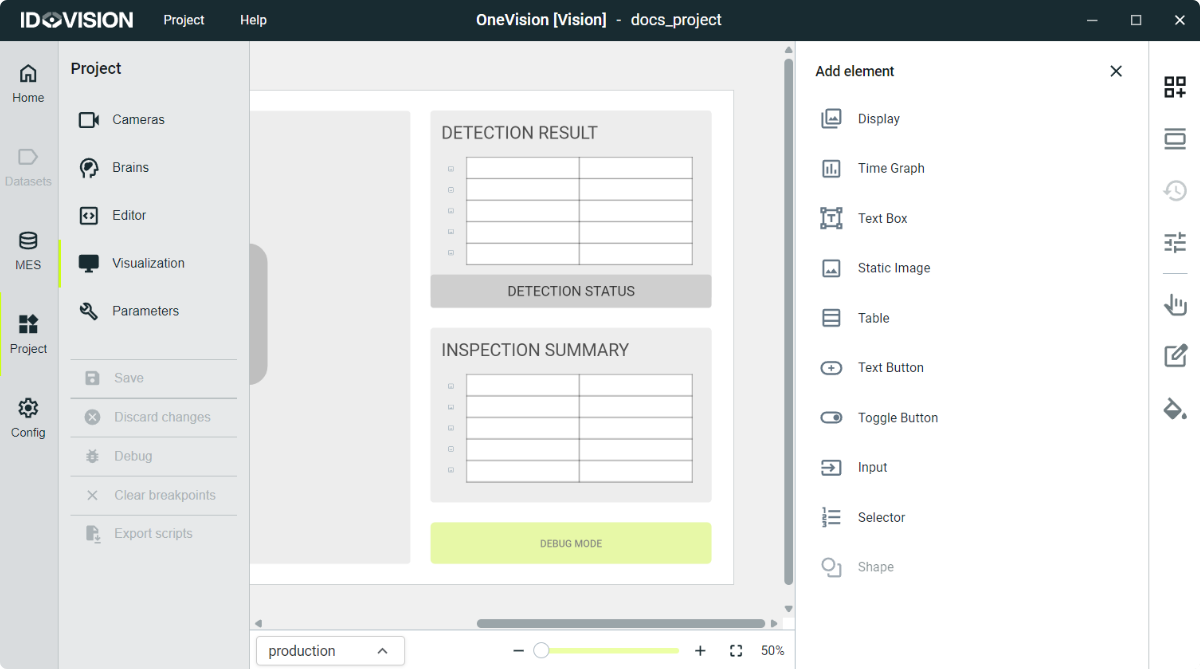
Display
Display elements are used to continuously show a changing image in production. By double-clicking on these elements in the Home page, you can enter the image display mode.
Time Graph
Time graph elements are designed to display a temporal graph, where the x-axis updates at a configurable interval while showing various types of data (points, lines, bars, etc.). These data are dynamically added in production.
Text Box
The objective of text box elements is to display text that can change dynamically in production. In addition to the text content itself, attributes such as font size, color, alignment, etc., can also be adjusted.
Static Image
Unlike display-type elements, Static Image elements are designed to contain static images. This would include cases like logos that are intended to remain consistent and unchanged.
Table
Table elements are used to display data in a table format. Both the content and the background color of the cells, as well as the number of rows and columns, can dynamically change. Additionally, these tables can be interactive, allowing you to select one or multiple rows.
Text Button
The push button is an element that responds to user clicks in production. It dynamically changes text, color, size, and enables or disables its functionality. It is useful for actions such as changing between pages, starting a process, submitting data, or activating features.
Toggle Button
The toggle button is an interactive element that allows you to toggle between two states, typically on and off. In production, when the user presses the switch, it visually updates to reflect the current state and can trigger actions associated with that state. Its value can also be updated programmatically, without the action of a user.
Text Form
A text form is an interactive element that allows you to input and edit text in production. As you type, the content of the text input can be dynamically captured for processing or data storage purposes.
Selector Form
A selector form is an element that allows you to select a predefined text option from a dropdown list. It is useful for quickly choosing from available options and can dynamically capture the user's selection for processing or data storage purposes.