Download model
Model deployment
Once your model is trained and performing well, the next step is to deploy it for inference in real-world applications.
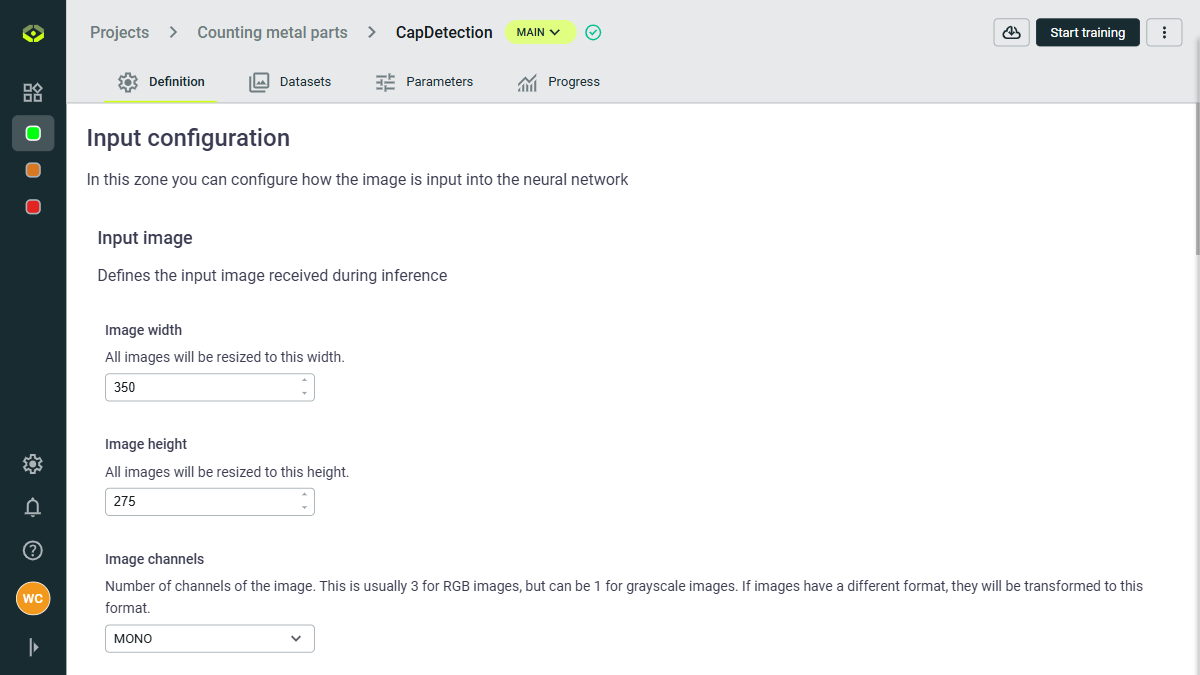
To deploy your model, you need to click on the ☁️⇩ Download button in the model page.
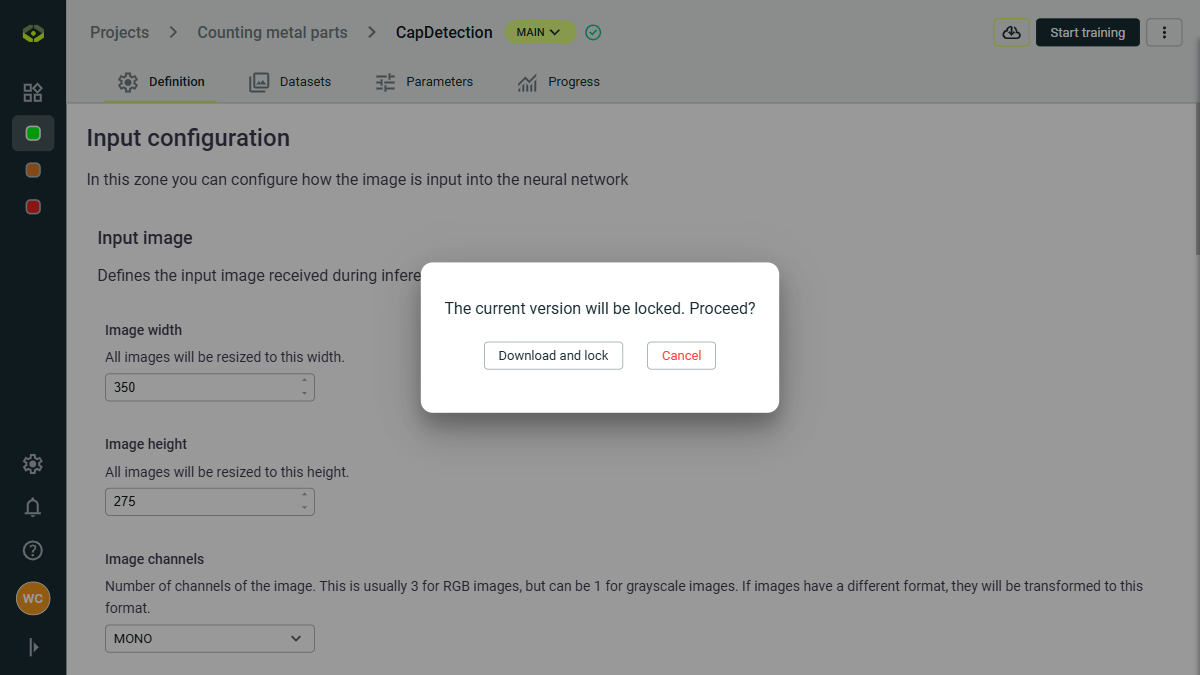
Once you clcik on this button, you will see a popup informing the current version of this model will be locked before deployment. You must confirm the deployment by clicking on the Download and lock button. And the model will be automatically downloaded to your computer.
Model versioning
Each time you deploy a model, VisionCloud automatically locks the current version of that model. This allows you to keep track of different iterations and improvements over time.
On the model version you can see:
- Version number: Incremented with each deployment.
- Training data snapshot: A record of the dataset used for training that version.
- Configuration settings: Details of the model architecture and hyperparameters used.
- Training progress: Metrics and logs from the training process.
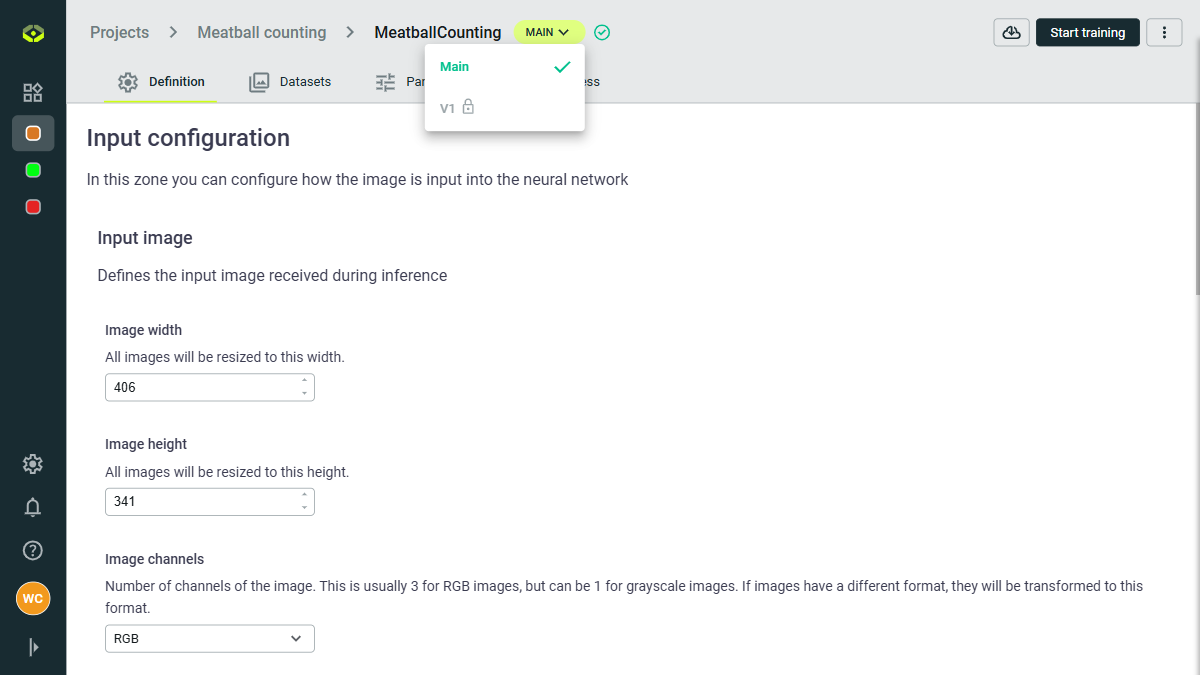
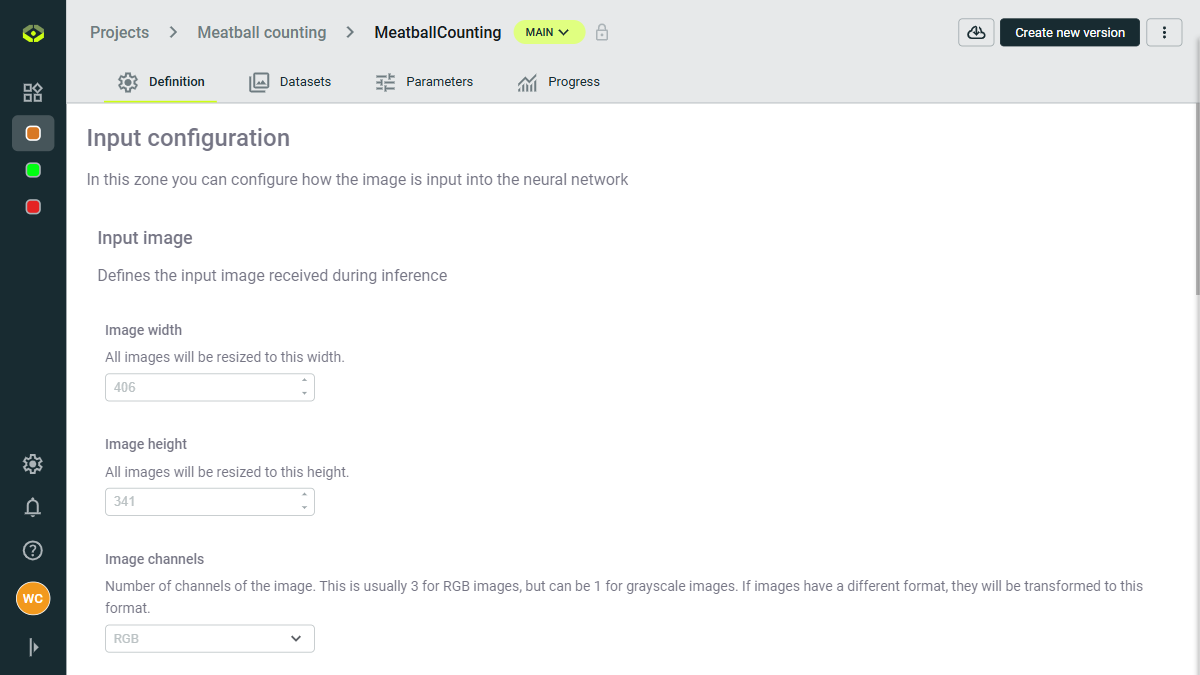
If you need to train a new version of the model, simply click on the Create new version button. This will create a new version of the model that you can modify and train without affecting the locked versions.
Download the model
Once your model is deployed, you can download it for local use or integration into your applications. To download the model, click on the ☁️⇩ Download button.
Export formats
VisionCloud exports models in OneVison format (.itsbrain) optimized for direct deployment to OneVision platforms.