Start training
Once your model is created and your dataset is ready, you can start the training process.
Initiate training
To begin training your model:
- Navigate to the Models section of your project.
- Select the model you want to train from the models table.
- Click the
Start trainingbutton to start the training process.
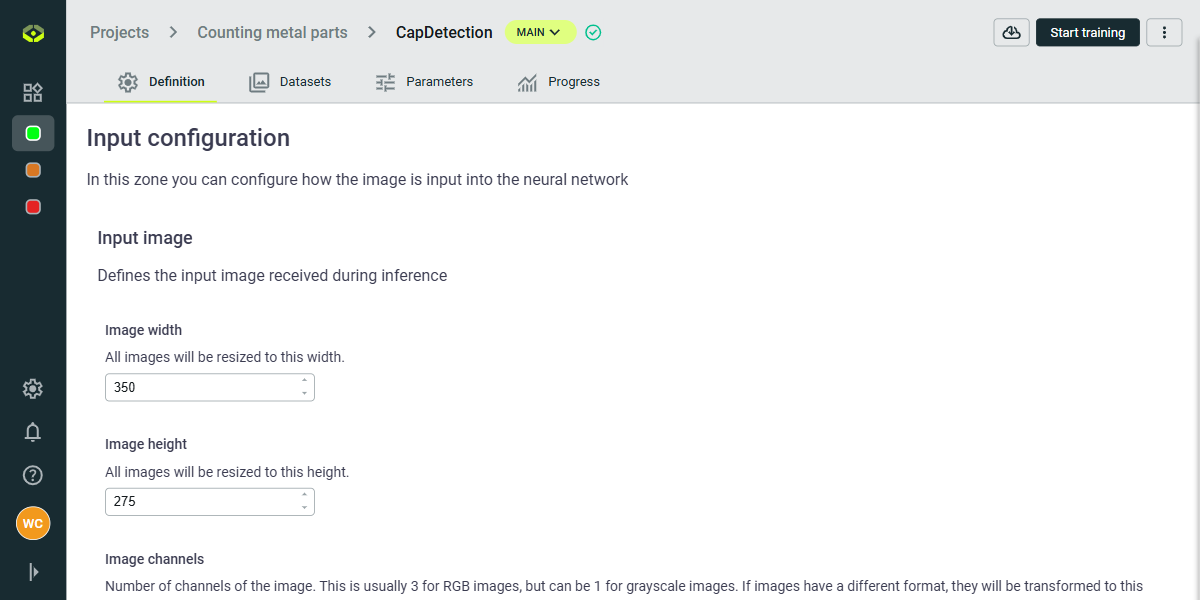
Once the training has started, the model will enter a training queue if necessary or will start the training process.
Monitor training progress
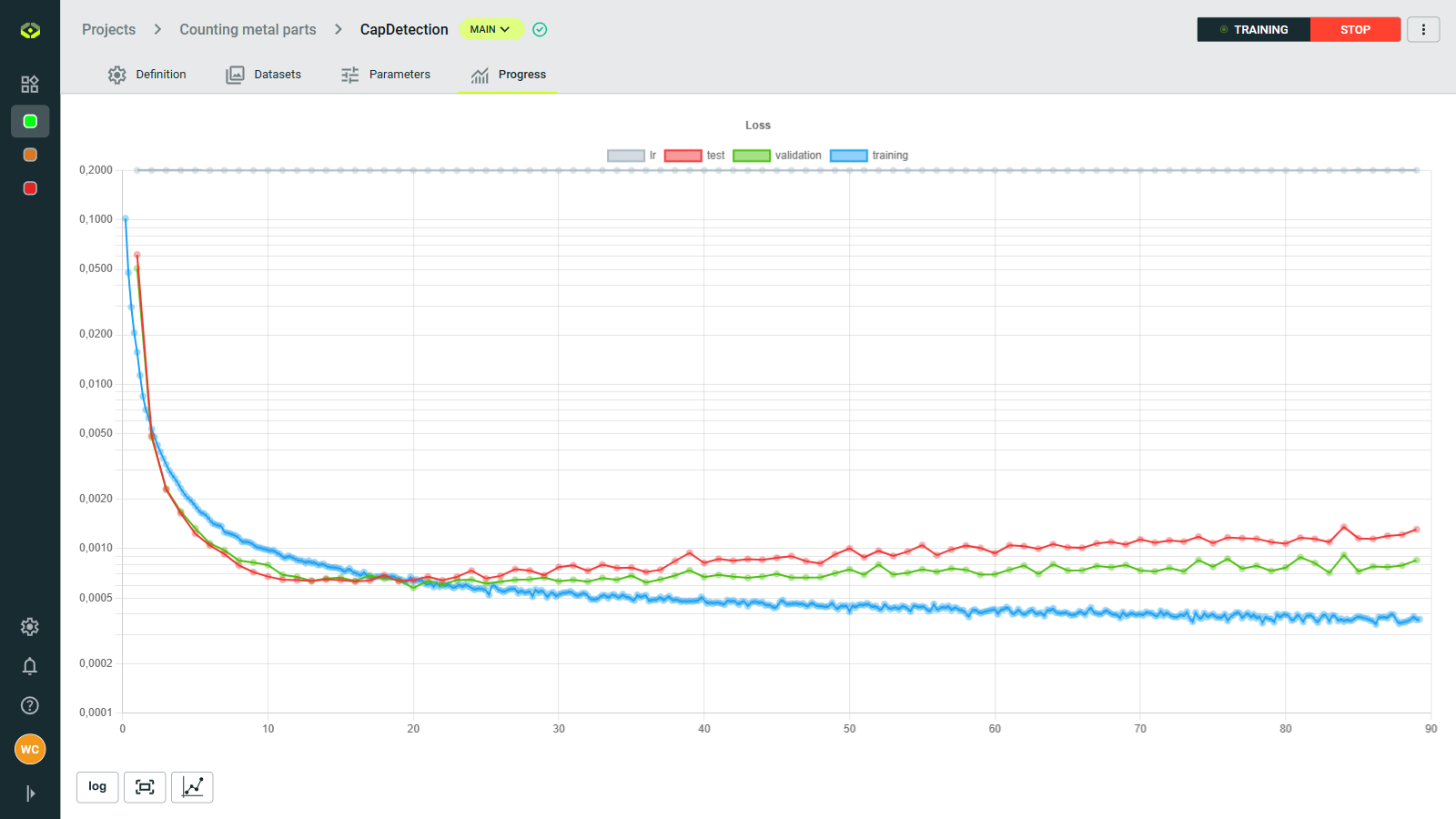
The Progress tab provides real-time feedback on your model's learning process.
You'll find:
- A real-time loss graph showing how well the model is performing.
- A panel at the bottom-left of the graph area that allows you to customize the display and scale.
This view is essential for tracking training evolution and quickly spotting any issues.
Learning metrics visualization
The progress visualization includes several key metrics to help you monitor and evaluate your model's training:
- Loss curves: Track the decrease in training and validation loss over time
- Learning rate: View the automatic learning rate adjustments during training
- Epochs: See the number of complete passes through the training dataset
Training duration
Training duration can vary widely based on several factors:
- Dataset size: Larger datasets require more time to process.
- Model complexity: More complex models with more parameters take longer to train.
- Hardware: Training on powerful GPUs or TPUs is significantly faster than on CPUs.
- Batch size: Larger batch sizes can speed up training but require more memory.
- Learning rate: The choice of learning rate can affect convergence speed.
- Data augmentation: Using data augmentation techniques can increase training time.
- Early stopping: If implemented, it can reduce training time by stopping early when we reach the maximum epochs.
Even with these factors, training times can range from a few hours for small datasets and simple models to several hours or even days for large datasets and complex architectures.
Training finalization
The training process will conclude when one of the following conditions is met:
- The maximum number of epochs is reached.
- The model converges, meaning the loss stabilizes and does not improve further.
- You manually stop the training process.
- The training is interrupted due to an error or system issue.
- The training is paused due to resource constraints.
- The training is completed successfully.
Stop training
You can stop the training process at any time by clicking the Stop button in the top-right corner of the progress view.
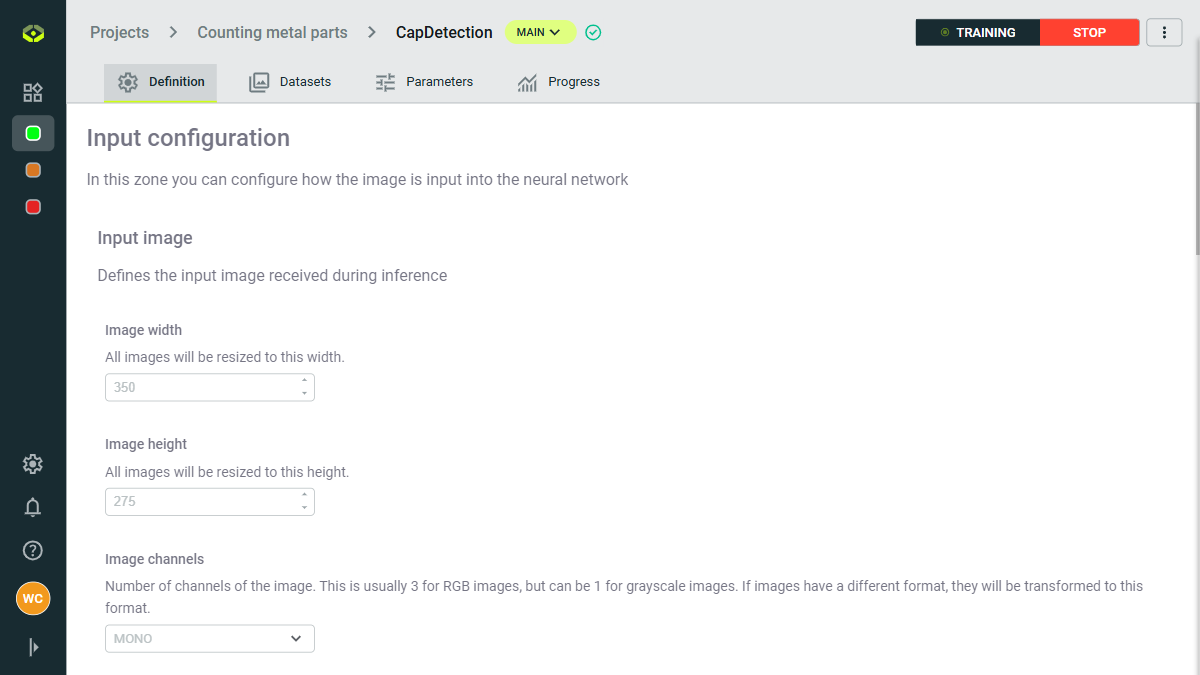
Once the training is stopped, the model will save its current state, and you can choose to resume training later or evaluate the model's performance based on the completed epochs.