Create Actions
In OneVision, Actions are runtime variables that can be modified during runtime. They are linked to a global variable declared in the scripts.
To interact with them, open the Actions side menu in the Home section.
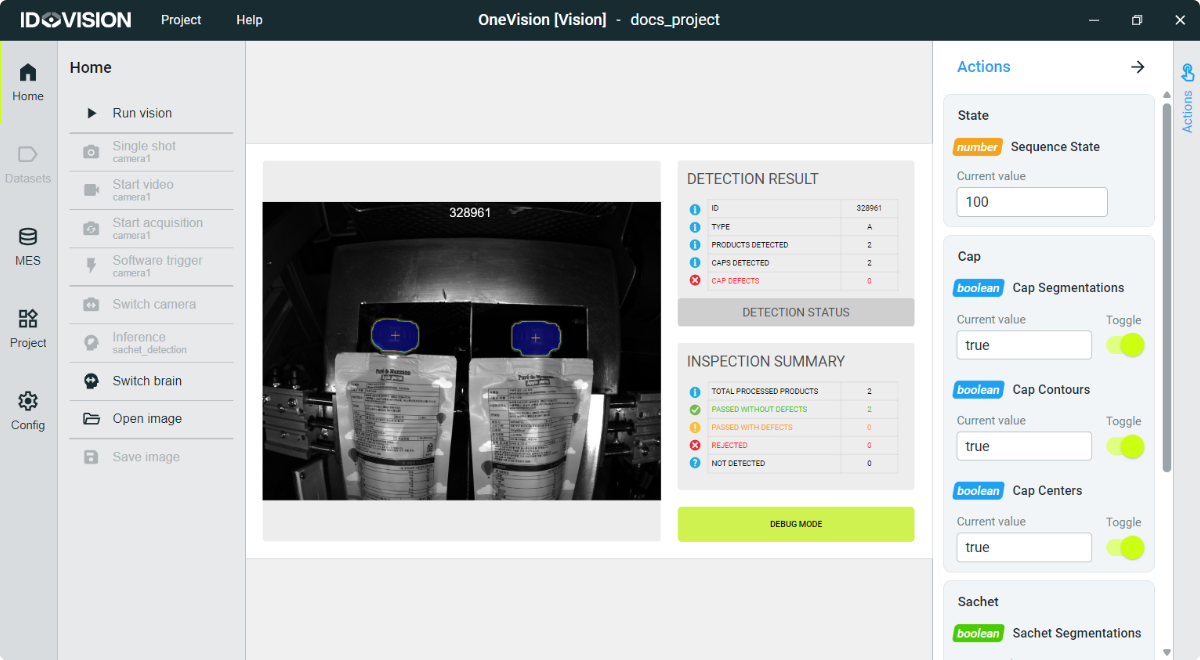
To create an action, go to Editor in the Project menu, and enter in Actions. Click the Add variable button at the bottom of the screen, and a new action will appear in the Actions table.
By clicking and dragging on the black dots to the left of the action name, you can change the order of the table.
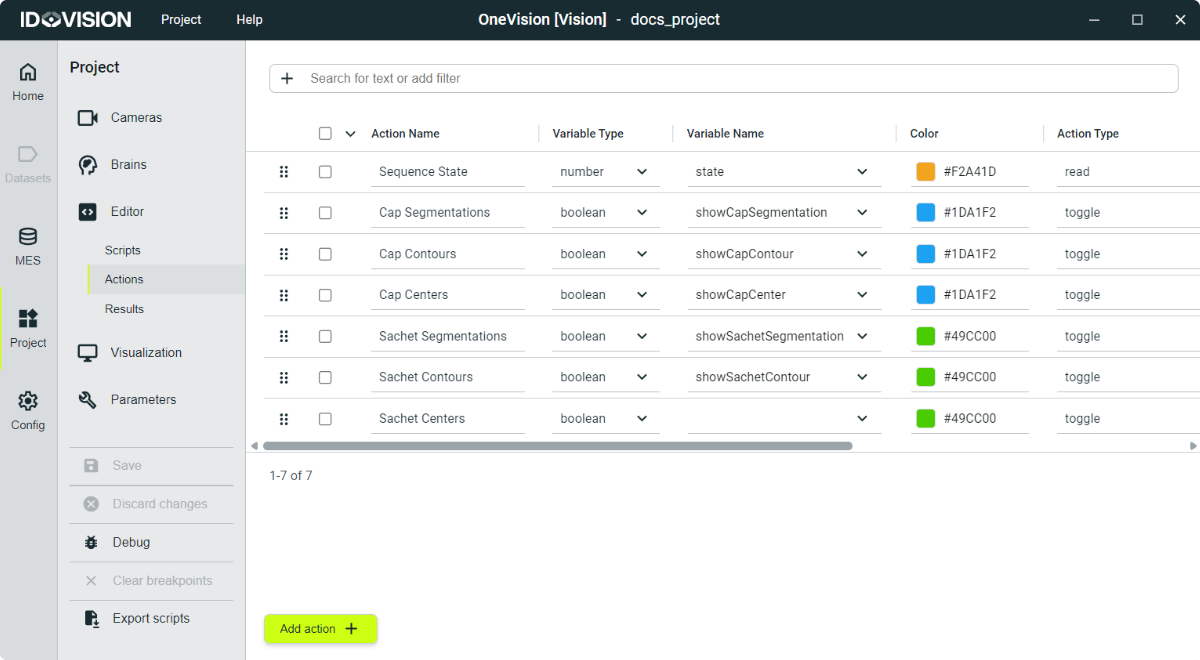
Each action has the following fields:
- Action name: The name must be unique.
- Variable type: The type of the variable linked to action. It can only be a number, a boolean or a string.
- Variable name: The name of the linked variable.
- Color: The color shown in the Actions menu.
- Action type: The type of interaction with the variable. They depend on the variable type. For numbers and strings you can set the type to set to be able to change its value, or to read to be a read-only variable. For booleans you can set the type to push to change its value for a moment with a pulse, or to toggle to change the value permanently.
- Access level: Defines the Users that can interact with the variable.
- Group: The Actions will be organized in the Actions menu based on this tag.