Writing Code
The OneVision has a code editor with syntax highlighting, autocompletion, error checking and more. Here we will explain some of these features. To learn how to program in OneVision go to Programming.
Syntax highlighting
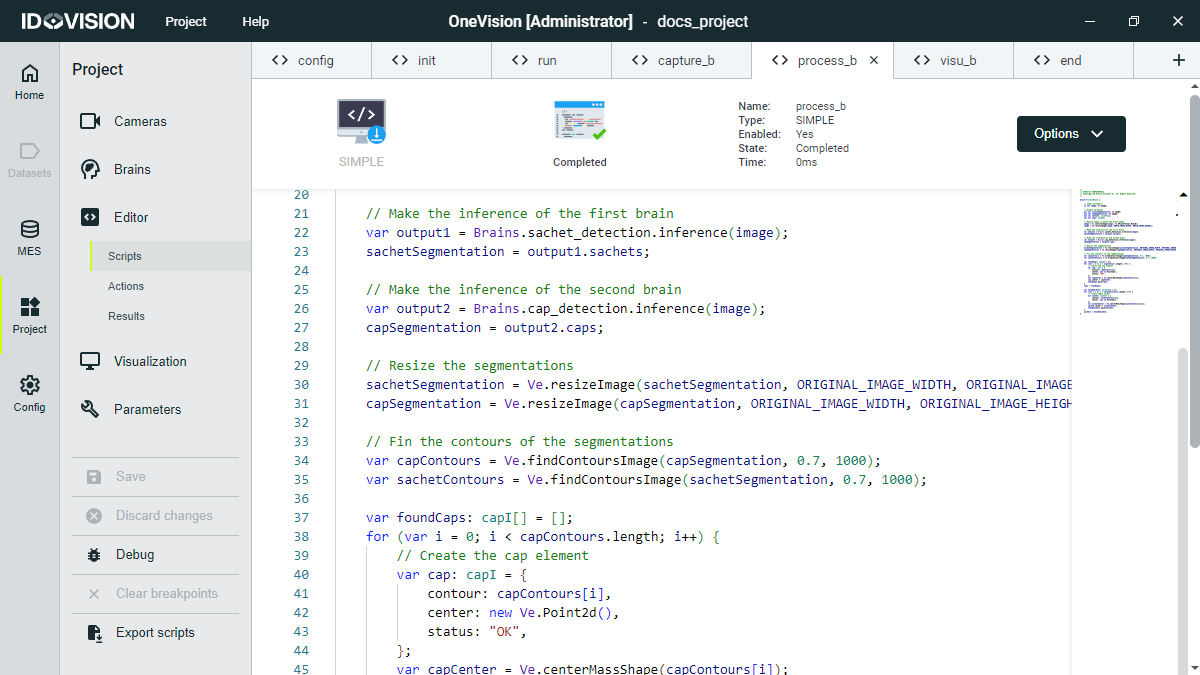
OneVision provides syntax highlighting to make script reading and understanding easier. Here is how some of the different elements are highlighted in OneVision:
- Primitive types are highlighted in green.
- Namespaces are violet.
- Variable declarations are shown in blue.
- Functions and variables are black.
- Control flow statements like if, else, for, while... are highlighted in blue.
- Numbers are green.
- Boolean literals are shown in blue.
- Strings in red.
- Comments are green.
Error highlighting
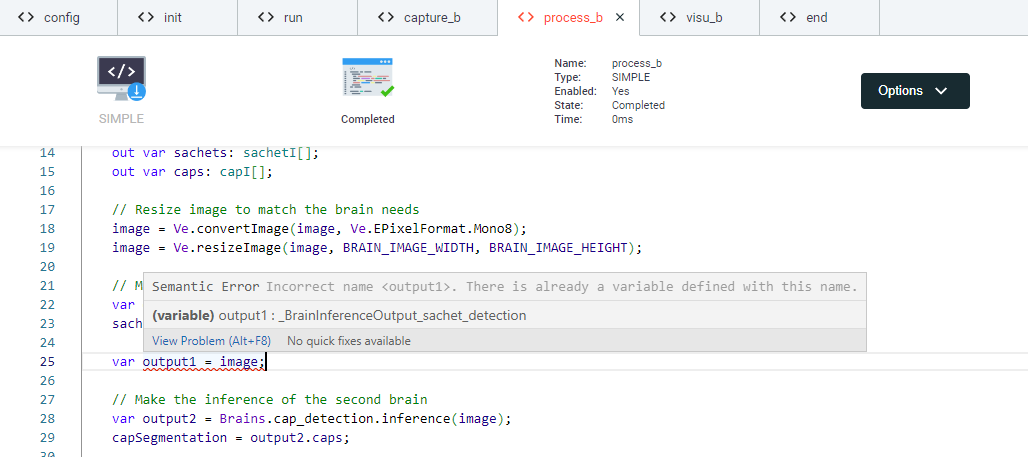
If there is a syntactic or semantic error in the script, the line where the error occurs (or the part of it) will be underlined in red. Also, the script will be in red and the runtime cannot be started.
A dialog will appear indicating the type of error.
Autocompletion
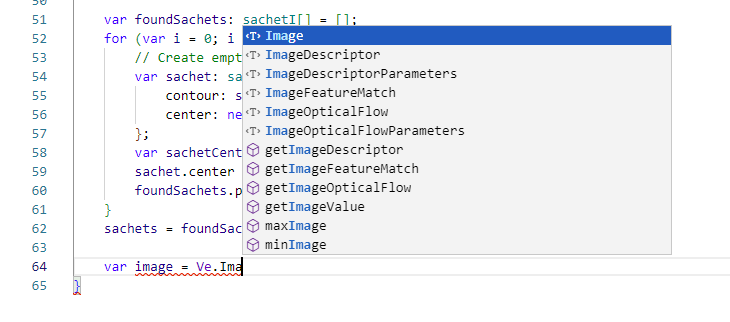
Autocompletion helps you write code in OneVision faster and with fewer errors by suggesting possible completions as you type. It can complete variables, function names, keywords, etc.
When you are writing code, the autocompletion assist will show a menu with different suggestions. You can navigate this menu with the arrow keys and complete with Tab.
Shortcuts
Like most code editors, OneVision code editor provides a number of shortcuts to make writing code easier. Here are most important ones:
Editing
| Action | Shortcut |
|---|---|
| Copy | Ctrl + C |
| Cut | Ctrl + X |
| Paste | Ctrl + V |
| Undo | Ctrl + Z |
| Redo | Ctrl + Y |
| Trigger autocompletion | Tab |
| Select all | Ctrl + A |
| Select line | Ctrl + A |
| Delete line | Ctrl + Shift + K |
| Indent line / selection | Tab |
| Outdent line / selection | Shift + Tab |
| Comment/uncomment line | Ctrl + Ç |
| Duplicate line | Alt + Shift + Up / Alt + Shift + Down |
| Move line up/down | Alt + Up / Alt + Down |
| Select word | Ctrl + D |
| Select all word occurrences | Ctrl + D for every occurrence |
Searching
| Action | Shortcut |
|---|---|
| Find | Ctrl + F |
| Replace | Ctrl + H |
| Go to a specific line | Ctrl + G |